What you’re trying to do
Understand what MCP (Model Context Protocol) is, and how connecting an MCP Server lets your Mando AI Agent use your custom tools and data (like order tracking, CRMs, or internal systems).
Before you start
MCP is most useful when your AI Agent answers that are not in your Help Center or Content Library (for example: live order status, customer records, refunds, delivery ETAs).
You need an MCP server endpoint your team controls (hosted by you), and the right permissions to connect tools securely.
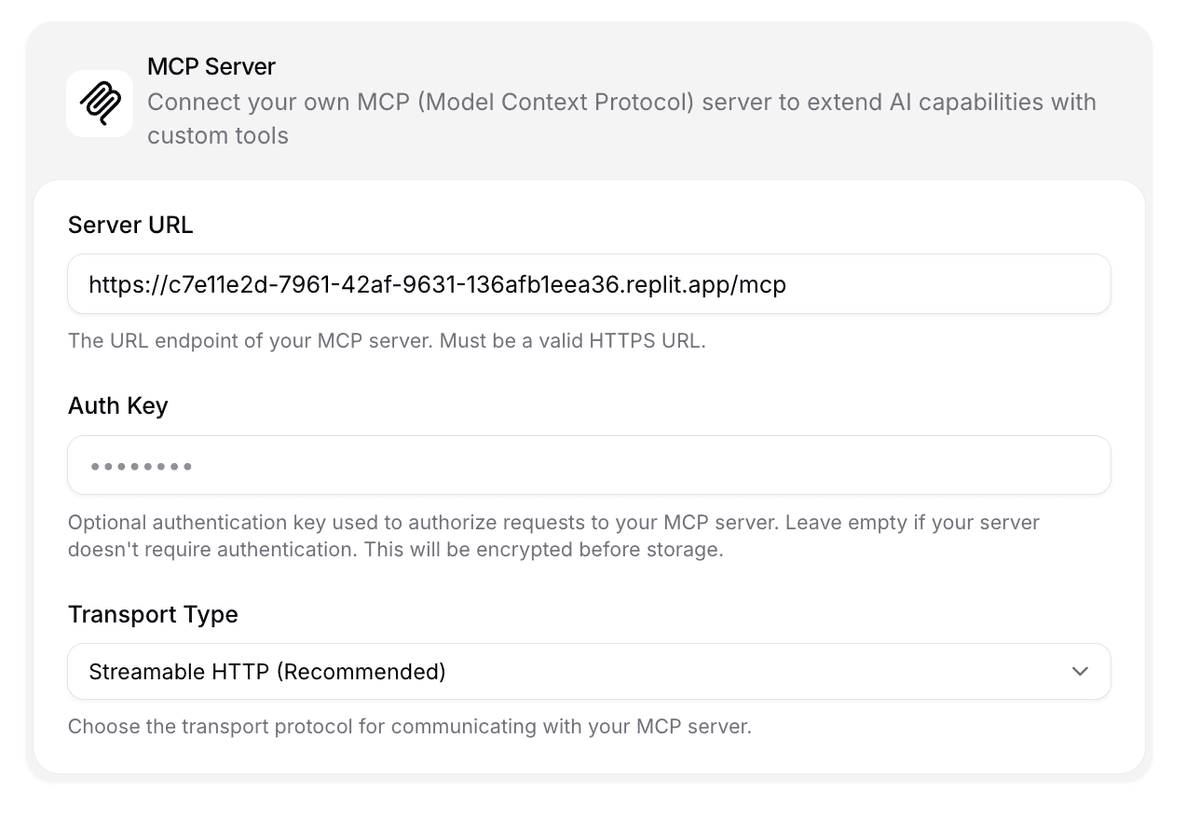
Steps
1) What MCP is (plain English)
MCP stands for Model Context Protocol.
It’s a standard way for an AI app to call external tools safely.
Your MCP Server is where you publish those tools (for example: “look up shipment status”, “find customer”, “create ticket”).
When connected, Mando can use your connected tools to take actions based on the permissions you allow.
2) What connecting MCP to Mando enables
Once your MCP Server is connected, your AI Agent can:
Fetch live data from systems you already use (shipping platforms, warehouse systems, CRMs, billing tools).
Do secure lookups during a support conversation (so answers are current, not guessed).
Trigger actions via your tools when you allow it (for example: create a support ticket, update a record, request a callback).
3) Common support use cases
Order & delivery support: “Where is my order?” “What’s my ETA?” “Has it been delivered?”
Account support: “Update my email” “Check my subscription status”
Returns & refunds: “Start a return” “Check refund status”
Operations handoff: “Escalate this to a human” + include the right context and IDs (order ID, customer ID).
Troubleshooting
The agent is giving generic answers instead of checking live data
Make sure the MCP Server is connected and your tools are available.
Make sure your tool covers the user’s question (for example: order → tracking lookup).
The agent can’t complete the request
Your tool might require more inputs (like email + order number). Update your flow so the agent collects the missing details first.
Confirm it worked
Ask a question that requires live data (for example: “Track order 84721”).
You should see the agent return a specific tracking result (status/ETA), not a general help article answer.
Next steps
Decide your first 3–5 MCP tools (tracking lookup, shipment status, create ticket, customer lookup).
Add safe guardrails (what data the agent is allowed to access, and when to hand off to a human).