What you’re trying to do
Connect a WhatsApp Business account to your Mando AI Agent, so you can send and receive WhatsApp messages through the agent.
Before you start
You need an AI Agent app in Mando.
You need:
A WhatsApp Business Account (WABA) created or available to select during onboarding
A Meta (Facebook) Business Manager account
A business display name (this is reviewed/approved by Meta)
You must be able to approve permissions in Meta (you’ll be sent to Facebook Login for Business during setup).
Steps

Open your AI Agent app in Mando.
Go to Channels.
Find WhatsApp Business.
Click Connect.
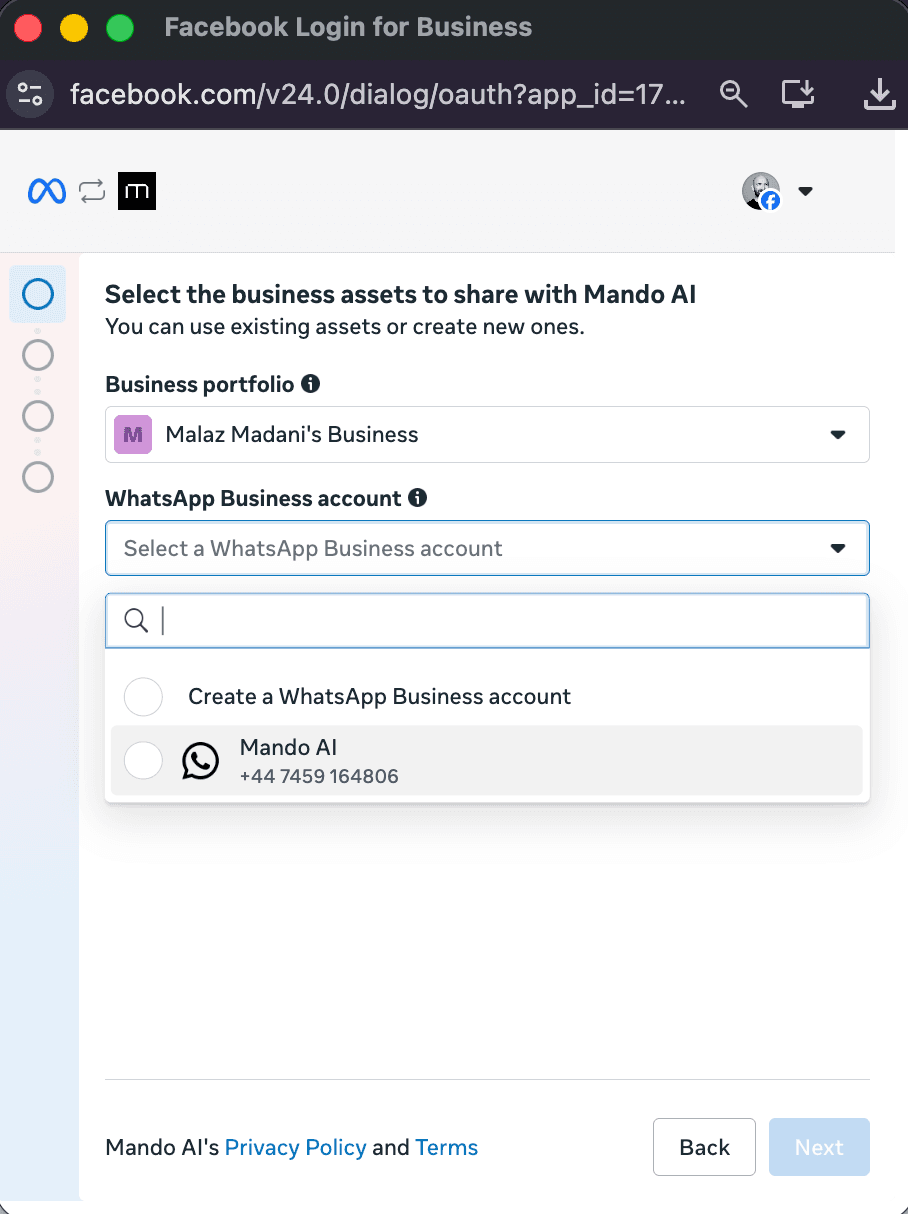
In the Meta window (Facebook Login for Business), review the page titled Select the business assets to share with Mando AI.
Under Business portfolio, choose the correct portfolio (business).
Under WhatsApp Business account, open the dropdown and select your WhatsApp Business account.
If you don’t have one listed, choose Create a WhatsApp Business account.
Click Next and complete the Meta approval flow.
Return to Mando.
Troubleshooting
I see “No WhatsApp Business Account Connected”

Go back to Channels → WhatsApp Business and click Connect again.
In Meta, make sure you selected a Business portfolio and a WhatsApp Business account, then click Next.
My WhatsApp Business account doesn’t appear in the dropdown
Switch the Business portfolio dropdown to the correct business and check again.
If you don’t have a WABA yet, select Create a WhatsApp Business account.
Confirm it worked
I need to remove the connection
In Channels → WhatsApp Business, click Disconnect.
In Channels → WhatsApp Business, you see:
Status: Active
A WABA ID
The message “Integration is active and ready to use”
Next steps (optional)
Send a test message to your WhatsApp Business number and confirm the conversation appears in your agent’s inbox/workflow (where your team handles conversations).