User roles help teams control who can:
manage AI Agents
edit content
access conversations
configure integrations
manage workspace settings
This helps businesses organize collaboration securely across different teams and workflows.
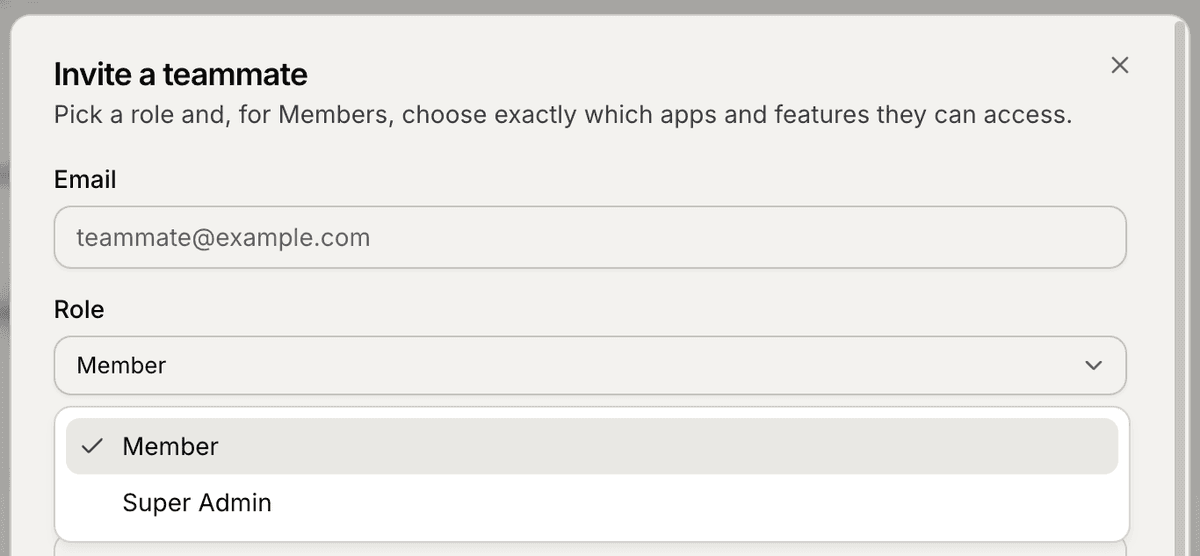
Open the Team section
To review user roles:
Open your workspace
Go to Team
Stay inside the Members tab
Inside this section, you can view:
team members
assigned roles
app access
permissions
Understand role access
Different roles may have different levels of access inside the workspace.
Depending on the assigned role, users may be able to:
manage content
configure AI Agents
access conversations
manage integrations
update workspace settings
This helps businesses separate operational responsibilities across teams.
Super Admin access
The Super Admin role has full access to the workspace.
Super Admins can:
manage billing
invite or remove members
edit permissions
configure integrations
manage AI Agents and content
This role is usually reserved for workspace owners or administrators.
Manage app access
User access can also be scoped to specific apps or AI Agents.
For example:
a support teammate may only access support-related AI Agents
a sales teammate may only access sales workflows
This helps keep workspaces organized and secure.
Update member permissions
Workspace admins can later:
change user roles
update app access
remove members
reorganize permissions
This allows permissions to evolve as your team grows.
Why roles matter
Proper role management helps:
improve security
reduce accidental changes
organize responsibilities
separate workflows across departments
This becomes especially important for larger support and ecommerce teams.
PRO TIP:
Keep the number of Super Admins limited. Smaller admin groups usually make workspace management more secure and easier to maintain.