The Web Widget can be customized to improve:
branding
customer experience
visibility
engagement
usability
You can control the widget’s appearance directly from the Playground.
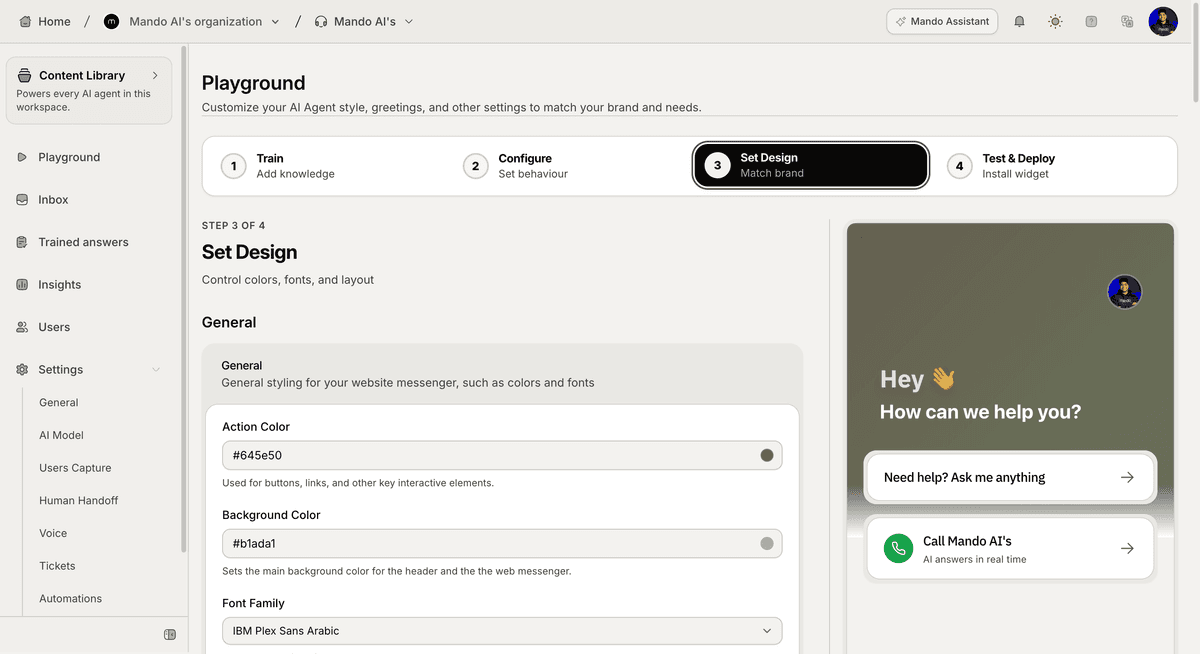
Open the widget customization settings
To customize the Web Widget:
Open your AI Agent workspace
Go to the Playground
Open the Set Design step
Inside this section, you can update the widget’s appearance and behavior.
Customize widget colors
You can update:
primary colors
background colors
action colors
text colors
This helps match the widget with your website branding.
For example:
ecommerce stores often match storefront colors
SaaS companies often use brand accent colors
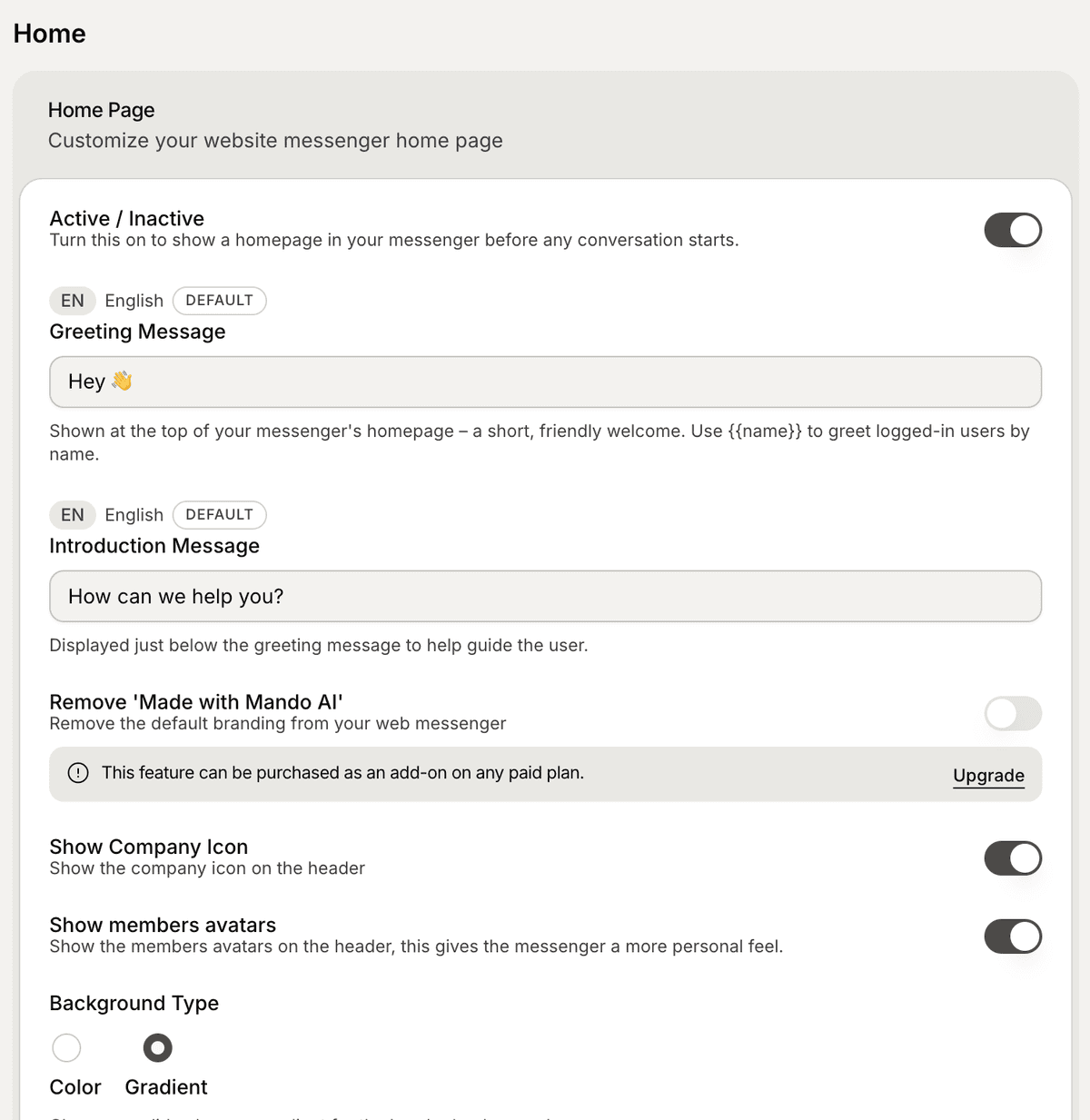
Update the welcome message
The welcome message is the first thing visitors see when opening the widget.
You can customize:
greeting text
introduction message
support prompts
Examples:
“How can we help you today?”
“Ask us anything about shipping or returns.”
“Need help getting started?”
Short and clear welcome messages usually work best.
Configure the launcher
You can customize how the launcher appears on your website.
Available settings may include:
launcher position
horizontal spacing
vertical spacing
launcher icon
This helps improve visibility across different layouts and devices.
Customize branding
Depending on your workspace configuration, you may be able to customize:
company logo
widget appearance
member avatars
branding visibility
Consistent branding creates a more professional support experience.
Test the widget design
After updating the design:
Use the live preview panel
Test the widget on desktop and mobile
Verify readability and spacing
Confirm the experience matches your website
Testing helps identify visual issues before deployment.
Update the design anytime
Widget changes can be updated later without reinstalling the script.
This allows you to:
refresh branding
improve onboarding messages
optimize engagement
improve customer experience over time
Changes are applied automatically after saving.
PRO TIP:
Keep the widget experience simple and easy to scan. Most users decide whether to interact with the widget within a few seconds.