How roles and team access work in Mando AI
Mando has two roles: Super Admin and Member. They're not interchangeable, and the difference shows up in what each person can see, change, and break.
This guide walks through what each role can do, how to invite teammates, and how to control exactly what they have access to.
The two roles, in plain terms
A Super Admin owns the workspace. They handle billing, can delete apps, can invite or remove anyone, and have access to every part of the dashboard. The person who created the org is automatically a Super Admin. Most teams keep this to one or two people — if you need someone to do day-to-day work without giving them the keys to billing, that person should be a Member.
A Member is anyone you invite to help with the actual work — replying to chats, publishing articles, looking at analytics. The trick is that a Member doesn't automatically see everything. When you invite them, you pick exactly which apps they can access and which features they see inside those apps. Two Members in the same org can have completely different views of Mando.
Where to manage your team
Click Team in the top navigation of your workspace.
You'll land on the Members list. This is where you invite, edit access, and remove teammates.
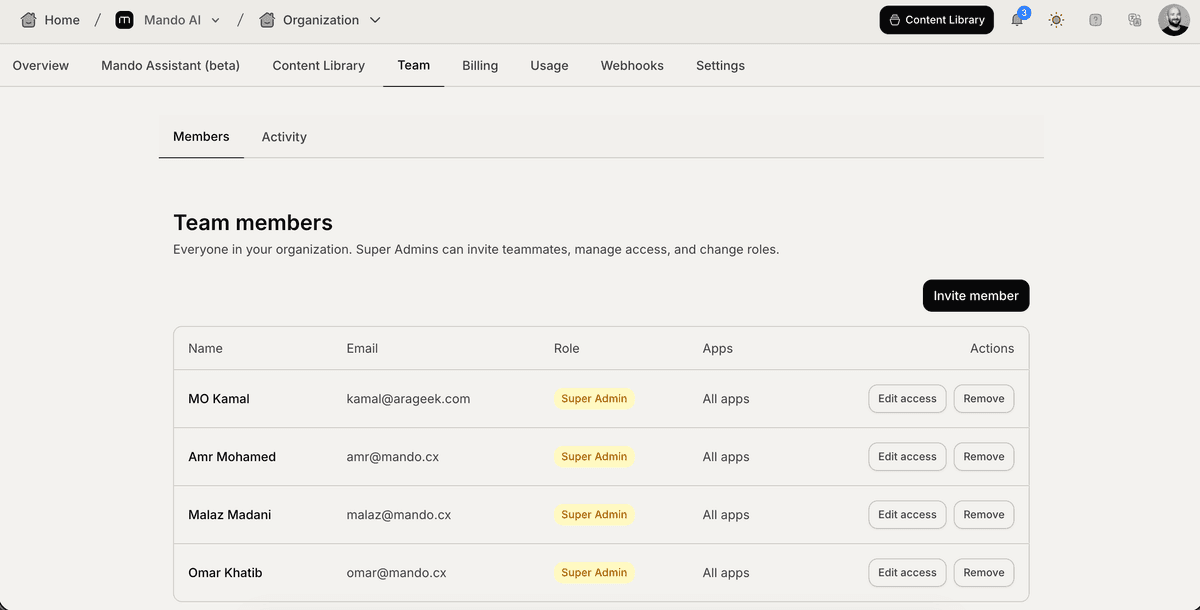
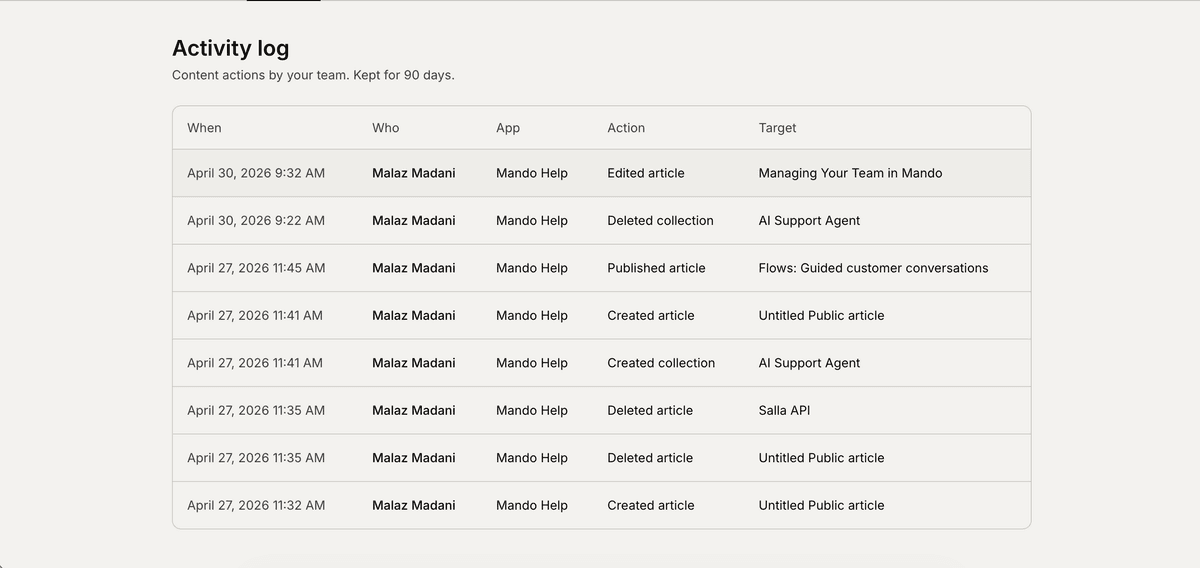
There's also an Activity tab next to it. That's a log of everything your team does inside Help Center and Newsroom — published articles, edited tags, that sort of thing. Useful for checking who changed what.
Inviting someone
Click Invite member.
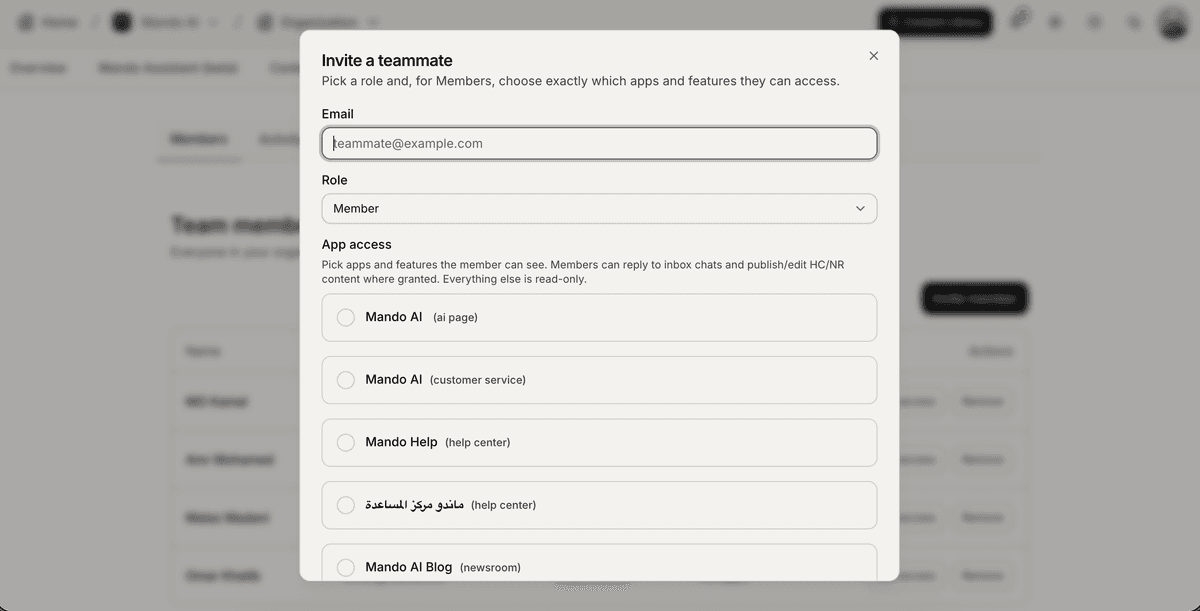
Three things to fill in:
Email — the email address of the person you're inviting. They'll get a Clerk invite email at this address. Heads-up: if your Clerk instance has Restricted Mode on, only emails from your allowed domains will work. Try a real email, not a
+alias.Role — leave it on Member unless you genuinely want to give someone full Super Admin access (billing, delete org, the whole thing). Don't take this lightly. We've watched founders accidentally give bookkeeping admins billing rights and regret it later.
App access — this is the interesting part. Below the role dropdown, every app in your workspace is listed. Tick the apps you want this person to access, and inside each ticked app, tick the specific features they should see.
The features inside each app depend on what kind of app it is:
Customer Service apps show: Inbox, Tickets, App Users, Quick Prompts, Playground, Analytics, Settings, Integrations.
Help Center / Newsroom apps show: Articles, Tags, Collections, Analytics, Settings.
AI Page apps show: Inbox, App Users, Quick Prompts, Analytics, Settings.
If you don't tick an app, the Member won't see it at all — not in the app switcher, not on the home page, not via direct URL. They effectively don't know it exists.
A note on what "access" really means
Ticking a box gives someone visibility of that feature. Whether they can also edit depends on the feature. Members can:
Reply to chats in any inbox you give them access to (CS or AI Page)
Convert chats to tickets in CS apps (if you've given them inbox access)
Create, edit, and publish articles, tags, and collections in Help Center and Newsroom apps
Edit quick prompts in AI Page apps
Everything else — Settings, Integrations, App Users, Analytics, Playground — is read-only for Members. Even if you tick the Settings checkbox for them, they can look at the settings page but can't change anything. That's by design. We didn't want a junior teammate accidentally rewriting your AI persona.
Once you've ticked everything you want, hit Send invite. The teammate gets an email. When they click through and accept, they land on the dashboard with exactly the access you gave them.
Editing someone's access later
Open the Members list, find the row, click Edit access.
[Screenshot: Members list row with an "Edit access" button visible]
You get the same checkbox tree you saw at invite time. Tick or untick whatever you want and click Save changes. Changes are live immediately on the backend; the Member might need to refresh their browser to see the UI update.
A few practical patterns we see teams use:
A support agent who only handles customer chats — give them Inbox + Tickets on your CS app, nothing else. Maybe Analytics too if you want them to see their own response times.
A content writer for the help center — give them Articles + Tags + Collections on your Help Center app. Skip CS entirely.
A teammate handling both — invite them to both apps, tick the relevant features in each.
Removing someone
Click Remove on their row in the Members list. You'll get a confirmation prompt — once you confirm, they're gone from the org and lose access immediately. Their member_app_capabilities rows are cleaned up automatically.
Only Super Admins can remove people. Members can't remove other Members, even if they share apps.
What about the seat limit?
Each plan has a maximum number of teammates:
Plan | Seats |
Free | 1 |
Light | 1 |
Growth | 3 |
Business | 5 |
Enterprise | 100 |
When you hit your limit, the Invite button gets grayed out and you'll see an upgrade banner above the table.
You can either remove an existing Member to free up a seat, or upgrade your plan from Billing.
Leaving an organization
If you're a Member or non-primary Super Admin and you want out, click your avatar in the top-right corner and pick Leave organization.
You'll be removed instantly and bounced to the org switcher. Your access cleanup runs in the background — about a minute or two and your team will see you gone from their Members list.
The one case where this is blocked: if you're the only Super Admin in the org. We don't let the last admin walk out without first promoting someone else, otherwise nobody could manage billing or invites. If you hit this, invite someone else as Super Admin first, then leave.
The Activity log
The Activity tab logs content actions in Help Center and Newsroom — when an article was created, edited, published, unpublished, or deleted, plus the same for tags and collections. Each row shows when, who, which app, what action, and the article/tag affected.
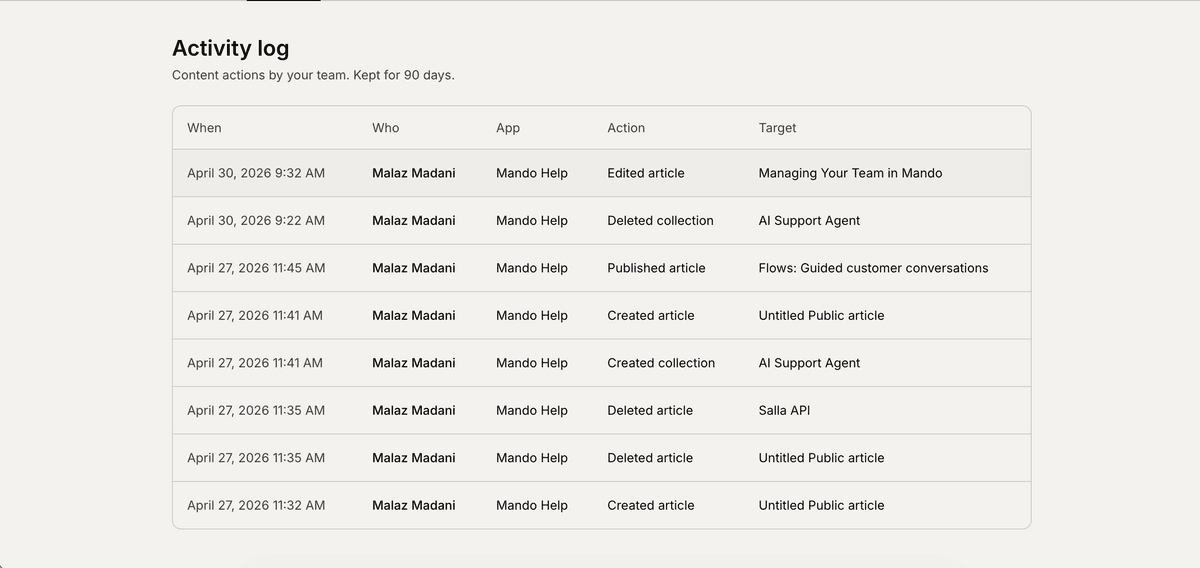
We deliberately don't log every chat reply. That'd be tens of thousands of rows per month for a busy CS app and the data is already in your inbox. If you want to know who replied to which chat, the inbox itself is the source of truth.
Logs are kept for 90 days. Older entries get cleaned up automatically.
Only Super Admins see this tab. Members don't audit each other.
A few questions we get a lot
Can a Member promote themselves to Super Admin? No. Only an existing Super Admin can change someone's role.
If I revoke a Member's access while they're using Mando, what happens? The next thing they try to do that requires that access (sending a message, publishing an article) gets blocked with a permission error. We'd recommend telling them you're doing it, just to avoid confusion.
A teammate accepted the invite but ended up on mando.cx, not the dashboard. Old invites had a buggy redirect. Just have them re-invited, or have them manually navigate to dashboard.mando.cx — their session will pick up.
My Member can see an app I didn't grant them. Have them sign out and sign back in. Clerk caches the session for a few minutes, so they're sometimes seeing stale state.
Can I give different Members different access to the same app? Yes — that's the whole point of the capability matrix. Maria can have Inbox + Settings on App A, Khaled can have Articles + Tags on the same App A. They won't overlap unless you grant them the same things.