A ticket has more fields than a chat. Most of them are obvious. A few catch people. This article walks through what each one is, where you set it, and when it actually matters.
The short version of where things live:
Convert dialog sets only Assignee, Priority, Subject, Body
Ticket detail page lets you change anything: Status, Priority, Type, Category, Assignee
Kanban drag changes Status (the column you drop into) and order within a column
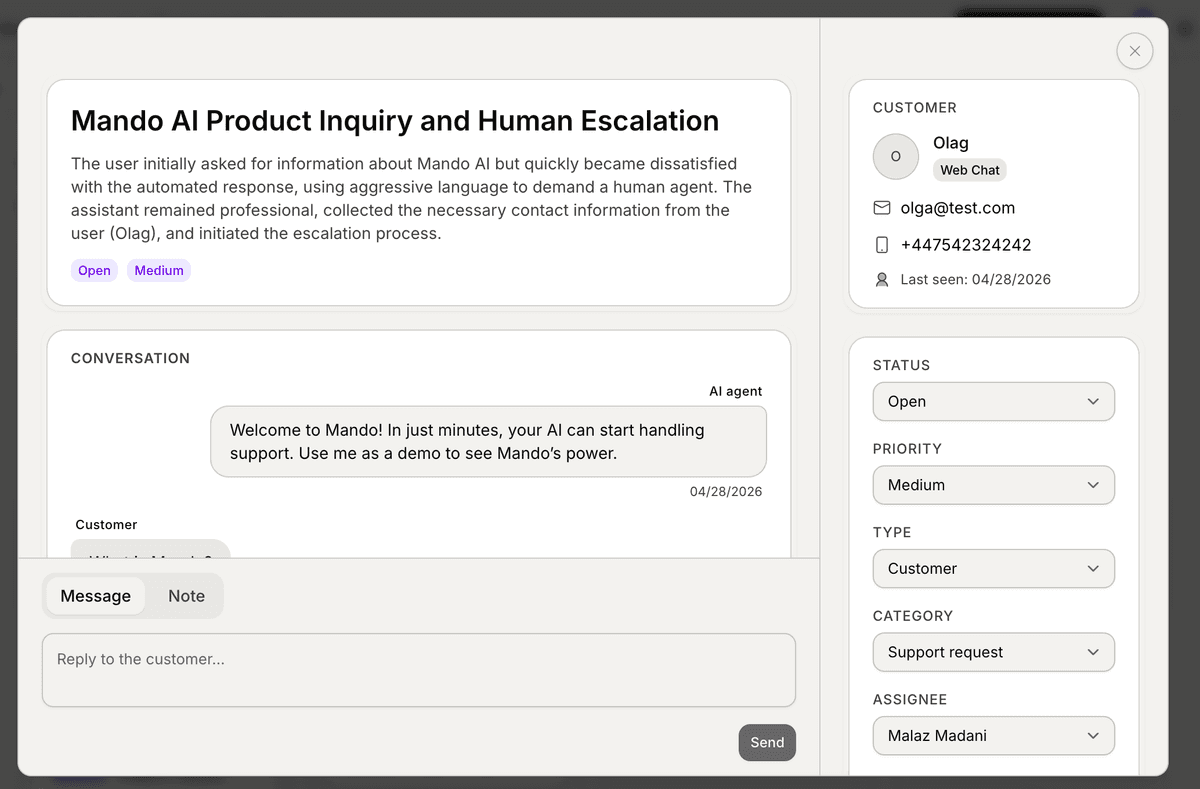
Status
Four values:
Open — nobody has started yet (the schema calls this
submitted, the UI calls it Open)In progress — actively being worked
Waiting on customer — ball is in their court
Resolved — done
Status is the primary lifecycle field. The Kanban columns are status. The list view's default sort respects last activity, but everything else flows through status.
The non-obvious part is Waiting on customer. It's not a holding cell for "I'll get to this later" — that's what snooze is for. Waiting on customer means you've replied, and you're now blocked on a human you don't control. If you set it and the customer is actually waiting on you, you're going to forget about it. Be honest with yourself.
Priority
Four values, ordered by ascending pain:
Low — annoyance. Could wait days, won't bother anyone if it does.
Medium — default. Should get a real reply this week.
High — should get a reply today. Customer is materially impacted.
Urgent — drop what you're doing. Production-down, money-on-fire, brand-on-fire.
The most common mistake is inflation. Customer wrote "URGENT!!!" so the agent set Urgent. Don't. Customer urgency and operational urgency are different units. Read the issue, then set the priority based on what's actually broken and how many people it affects.
A useful test: if every ticket on the board is High or Urgent, none of them are.
Category
Four values:
Support request — the default. Most tickets land here.
Bug report — something is broken in the product.
Feature request — customer wants something the product doesn't do.
Internal task — something your team is doing for itself, not in response to a customer.
Category is what powers your analytics breakdowns — the pie chart on the Analytics tab is grouped by it. If you mis-categorize, the chart lies. Good rule: change the category as soon as you know the truth, not at the moment you create the ticket.
The convert dialog locks new tickets at Support request on purpose. You usually don't know which category a chat belongs to until you've read it properly, and reading-during-conversion is rushing. Set it on the detail page once you know.
Assignee
Required. One person, not a team.
Yes, multiple people can work on a ticket. No, that doesn't mean it should have multiple assignees. The assignee is the person you'd ask "what's the status of this" — the single neck on the line. Other people contribute via internal notes or by handing the ticket back when their part is done.
If you're tempted to leave the assignee blank "until we figure out who should own it," you've already made the wrong call. Pick whoever's closest to the work, or pick yourself. You can reassign in one click later.
Type
Three values exist in the schema: Customer, Back-office, Tracker. In V1, every ticket created from a chat is Customer, and that's almost certainly what you want.
Back-office and Tracker exist for future workflows (internal-only tickets, parent-child trackers). You'll see the dropdown on the ticket detail page, but unless you have a specific reason, leave it on Customer.
Subject vs Title vs Summary
Three text fields. Easy to confuse. Here's the distinction:
Subject — what you typed in the convert dialog. Agent-authored. This is what shows on the Kanban card.
Title — AI-generated from the chat at conversion time. Used as a fallback on the Kanban card if Subject is empty, and shown elsewhere in search.
Summary — AI-generated. A short paragraph for the next agent who picks up the ticket. Shown on the detail page.
In practice: if the AI's Title was good enough, leave Subject blank and let the title flow through. If you needed something more specific (you usually do), use Subject.
The AI-only metadata
Two fields you don't set, but that exist behind the scenes:
Tone — AI's read of the customer's emotional register (neutral, frustrated, polite, hostile, etc.)
Frustration level — a 1–5 score
These don't currently surface as filters in V1, but they're stored on the ticket and may show up in future views. For now, just know they exist — and when the AI title looks like it understood the customer, that's why.
What's next
You know what each field means. Next article shows how to update many of them at once when you're cleaning up a backlog.
→ Next: Bulk actions: update many tickets at once