Sometimes you need to do the same thing to twelve tickets. The Table view has bulk actions for that. Here's how they work.
Where to find it
Switch to the Table view. There's a checkbox on every row, plus one in the table header to select all rows on the current page.
The moment you check at least one row, a bulk-action bar appears above the table. Uncheck everything (or hit "Clear") and the bar disappears.
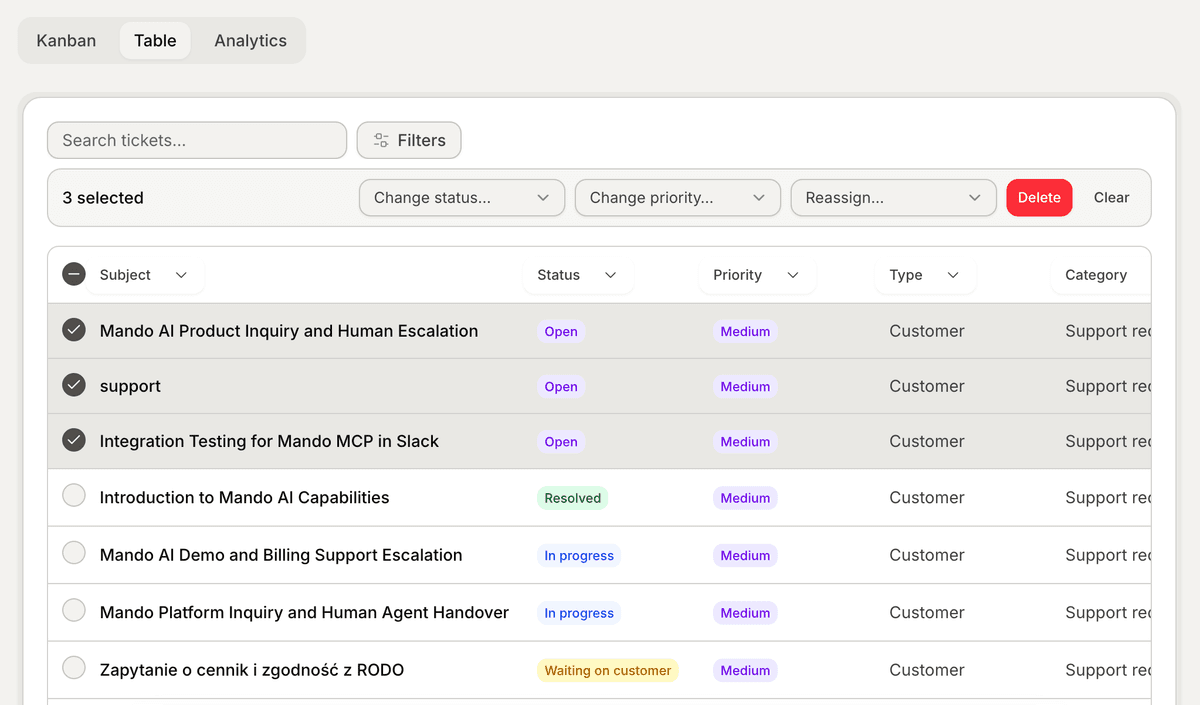
Bulk actions are Table-only. The Kanban doesn't have row selection — for that you'd just drag cards.
Selecting tickets
Three ways:
Click a row's checkbox — toggles that one row.
Click the header checkbox — selects every row currently on the page (not every ticket in the list — see the gotcha below).
Click "Clear" on the bar — deselects everything fast.
The select-all-on-page gotcha
Pagination matters here. The header checkbox selects every row on the current page, not every ticket that matches your current filters. If you have 200 tickets and a page size of 20, "select all" selects 20.
If you actually want to bulk-update more than a page, raise the page size first (the rows-per-page control is at the bottom of the table), then select. There's no "select all matching across all pages" button — yet.
What you can change in bulk
Four options on the bar:
Set status — flip status on every selected ticket. Useful for "mark all these as Resolved."
Set priority — same idea, for priority.
Set assignee — reassign in bulk. Most useful when a teammate leaves or goes on leave.
Delete — permanently removes the tickets. Confirms via a browser dialog. (Yes, the boring native one.)
That's the whole list. Category and Type aren't bulk-editable in V1 — open the ticket detail page if you need to change those. Snooze isn't bulk-editable either; snoozing is per-ticket on purpose.
Partial successes
Bulk operations fan out: each ticket update is its own request. If three of fifteen fail (say, a permission issue on a couple of tickets), you'll get a toast saying exactly that — "12 applied, 3 failed."
The toast doesn't tell you which ones failed. If precision matters, do them in smaller batches.
Delete is permanent
A few specifics worth knowing before you click:
Deletion is a hard delete. The tickets are gone. The activity log entries on those tickets go with them.
The linked chats are not deleted. They stay in the Inbox, untouched. You're deleting the ticket layer, not the conversation underneath.
The browser confirm dialog is the only safety net. There's no undo. If you delete 50 tickets by accident, you're recreating them by hand.
If you want tickets to disappear from the active view without deleting them, set their status to Resolved instead. Same effect (out of the way), reversible.
When NOT to use bulk
A few situations where bulk is the wrong tool:
You're not sure exactly what's in the selection. Bulk amplifies mistakes. If you're scrolling through a filtered list and not paying close attention, it's easy to delete tickets you actually wanted to keep. Slow down, sort, then select.
The change really should be different per ticket. Setting Priority=High on 30 tickets at once is fine if they're all genuinely high. If you're using bulk because you're tired of clicking, you're inflating priorities. (See the Priority section in Article 4.)
The "delete because it's stale" temptation. Snooze is usually what you want. Or set them all to Resolved. Delete is for tickets that should never have existed — spam, duplicates, test rows.
What's next
Bulk handles the everyone-at-once workflow. Next we cover the opposite — taking a single ticket out of view temporarily and letting it come back on its own.