The Tickets tab has three views: Kanban, Table, Analytics. Toggle between them with the tabs at the top. Filters stick when you switch — set them in Table, jump to Kanban, they still apply.
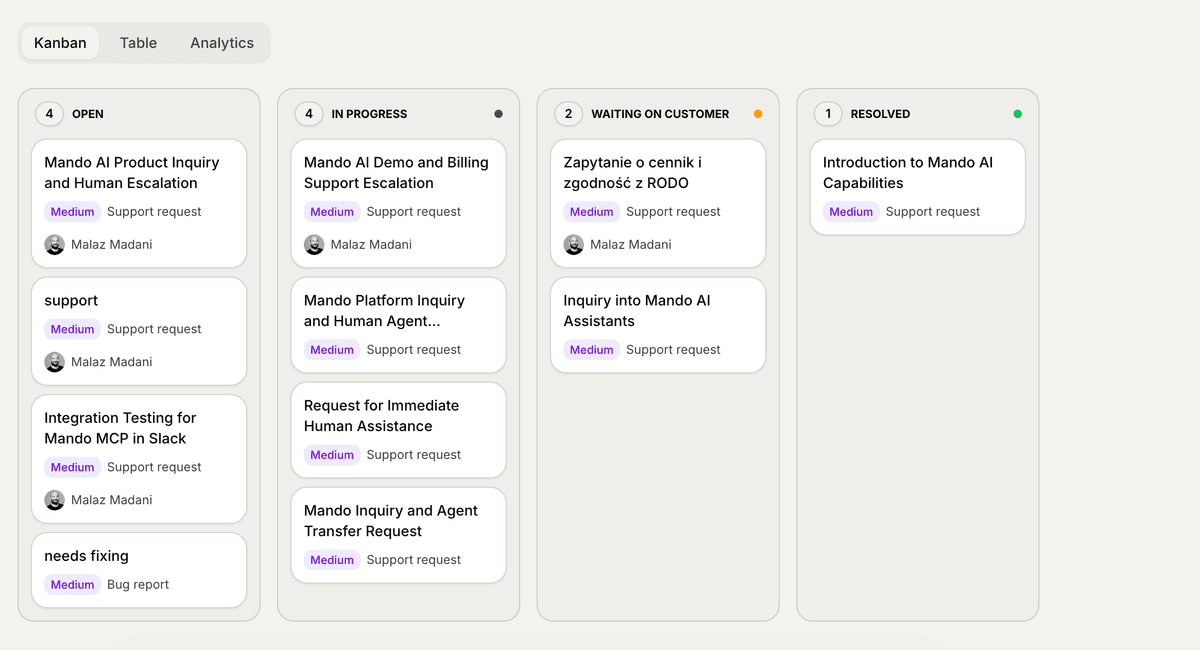
Most days you'll live in Kanban. Here's how it works.
The four columns
Left to right:
Open — new tickets, nobody's started them
In progress — someone's actively working
Waiting on customer — ball is in their court
Resolved — done
That order isn't decoration. It's the path of a healthy ticket. Most tickets walk left-to-right exactly once. The ones that bounce around — Open → In progress → Waiting → In progress → Waiting → Resolved — usually have something stuck in them. Worth investigating.
Moving cards
Drag a card to another column. That's it. Status flips, the change is recorded, and the customer sees nothing (because, again, the customer doesn't know what a ticket is).
You can also drag a card up or down within a column to reorder it. The board stores that order — top of the column means it's what whoever's looking at the column should pick up next.
A few things that catch people:
The order isn't saved per person. If you put the urgent one at the top, everyone sees it at the top. It's a team signal, not a personal todo list.
There's no auto-sort. Priority and "Urgent" labels don't push cards to the top of a column on their own. You drag them there, or they sit where you dropped them.
Drag carefully on touchscreens. There's a 150ms hold to start a drag (so you don't trigger one while scrolling). Long-press, then move.
What's on a card
Each card shows enough to triage in a glance: the title (AI-generated unless you edited it), the priority badge, the category, a small status-color dot, and the assignee's avatar. Click anywhere on the card to open the ticket detail page.
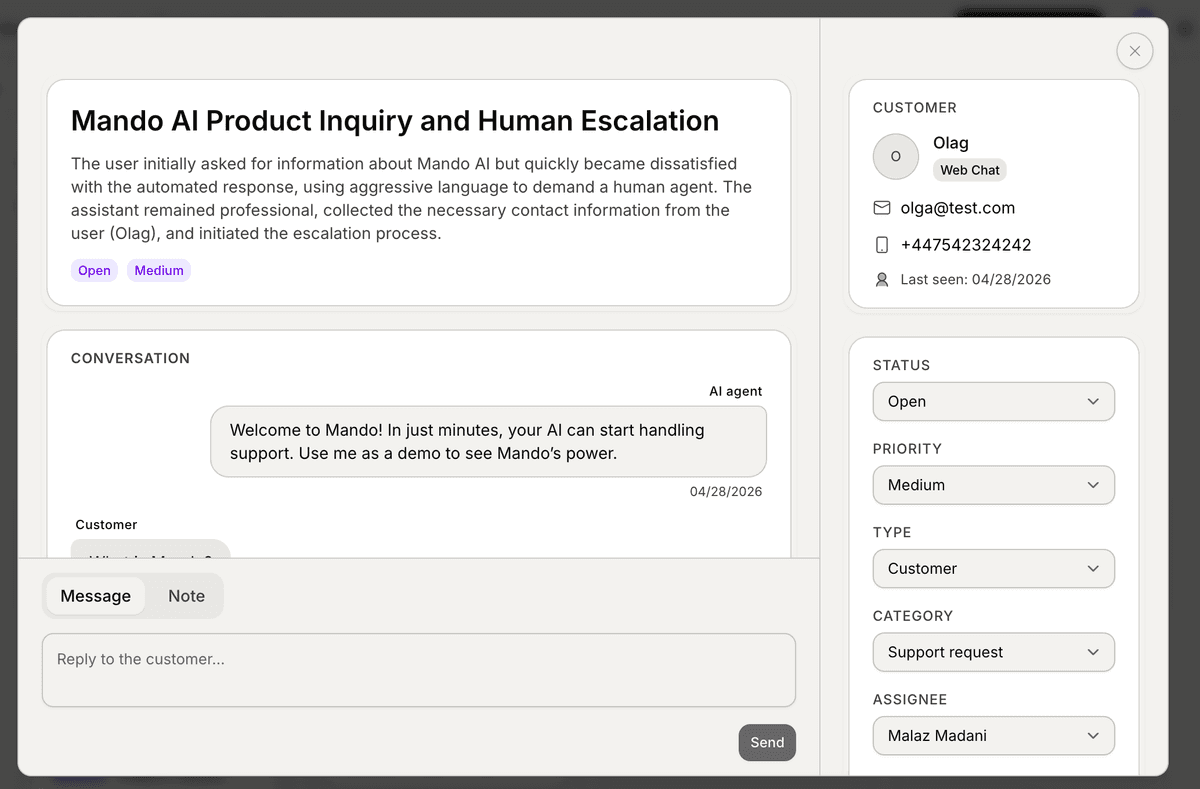
If a card looks empty or vague, that's usually a signal the AI title needs editing. Open the ticket and rewrite it.
Filtering and search
Filters live on the Table view. Search lives there too.
This is the slightly awkward bit: there's no filter button on the Kanban itself. To narrow things down, switch to Table → set filters → switch back to Kanban. The filters stick, and the Kanban now shows only the matching tickets, distributed across the same four columns.
Available filters:
Status (rarely useful — the columns already show status)
Type (Customer is the only one in V1)
Category — Bug report, Feature request, Internal task, Support request
Priority — Low / Medium / High / Urgent
Assignee — useful for "what does Sara have right now"
The search field matches against title, summary, and subject. No fuzzy matching — substring only. Keep queries short.
Snoozed tickets
A snoozed ticket disappears from the board until its snooze timer expires. It comes back automatically on its own — no manual unsnooze required — the moment the worker tick crosses its return time.
If you need to find a ticket that's currently snoozed, that's a separate workflow. The Snoozing article covers it. For the daily Kanban loop, snoozed = invisible by design. That's the point.
A reasonable daily loop
If you don't have one yet, this is a fine starting point:
Open Tickets → Kanban
Filter to your assignee or your team
Top of Open → triage, set priority if it isn't right, assign if it isn't
In progress → move what's actually being worked, snooze what's blocked
Waiting on customer → check timestamps, bump anything that's been silent too long
Resolved → glance, close out the tab
Ten minutes if you do it daily. Ninety if you do it once a week. Pick one.
What's next
You know the board now. Next article digs into the fields that go on each ticket — priority, category, status, assignee — and when each one matters most.
→ Next: Ticket fields explained