Three things the system does for you over time, all gathered in one article so you can see how they fit together.
Snooze — you tell a ticket "go away until X." It comes back on its own.
Waiting bump — a customer goes silent for too long; the system reminds the assignee.
Auto-close eligible — a Resolved ticket sits untouched long enough that the system flags it as safe to close.
All three are time-based and all three run quietly in the background. You don't manage them, they manage themselves.
Snoozing
Open a ticket. In the right-side panel there's a Snooze section with four buttons:
4 hours — back-burner for the rest of the workday
1 day — pick it up tomorrow
3 days — pick it up later this week
1 week — pick it up next week
Click one. The ticket disappears from the active Kanban and the active Table. The badge on the ticket's panel switches to Snoozed until [date], with a single Wake up now button if you change your mind.
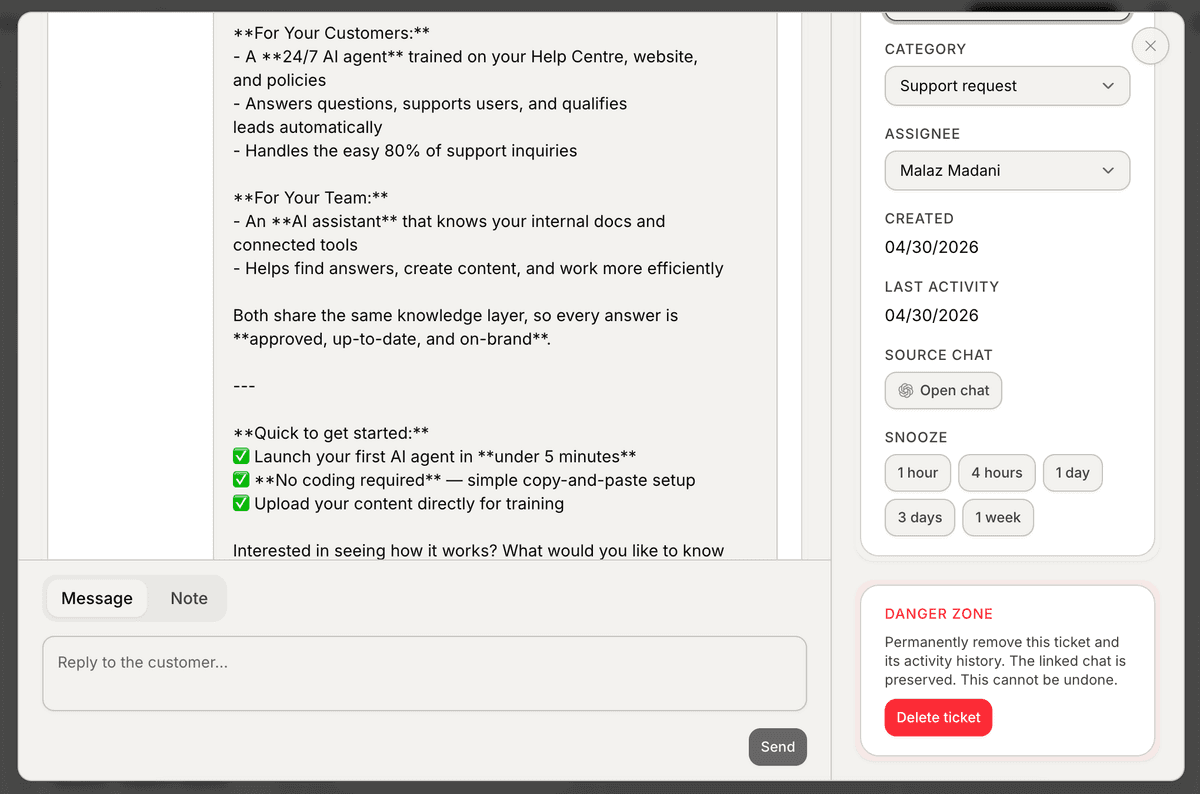
A snoozed ticket isn't deleted, isn't resolved, and isn't waiting on anyone — it's just hidden. When the timer expires, a worker that runs every minute brings it back into the active list automatically. You don't need to "unsnooze" it yourself.
There's no custom date picker in V1. If you need 5 days, pick 1 week. If you need 12 hours, pick 1 day. The presets are deliberate — picking specific times for tickets is itself a form of procrastination.
Snooze vs Waiting on customer vs Resolved
These three are easy to mix up. The honest distinction:
Snooze means I'll come back to this on a date I picked. The blocker is your time.
Waiting on customer means I'm blocked on a human I don't control. The blocker is them.
Resolved means we're done, nothing else needs to happen.
If you're using "Waiting on customer" as a parking lot for things you'll deal with later, set Snooze instead. If you're snoozing because you replied and now you're waiting on the customer, set Waiting on customer instead. Get this right and the analytics actually mean something.
Waiting bump
If a ticket sits in Waiting on customer for 5 days with no activity, the system fires a waiting_bump event. Two things happen:
An entry appears in the ticket's activity log: "Customer hasn't responded in 5+ days."
The assignee gets a notification.
That's it — no automatic message goes out to the customer, no status change. The system is just nudging you. You decide whether to follow up, escalate, or close it out.
The 5-day threshold is configured in code (WAITING_BUMP_DAYS). If your team needs a different rhythm, that's a one-line change.
Auto-close eligible
If a ticket sits in Resolved for 7 days with no further activity, the system fires an auto_close_eligible event. The activity log gets an entry: "No activity for 7+ days; safe to close."
Important: this does not actually close the ticket. It just flags it as a candidate. You still have to look at it and decide. There's no silent auto-close happening behind your back.
The 7-day threshold lives next to the 5-day one (RESOLVED_AUTO_CLOSE_DAYS). Same kind of one-line change if you want it different.
How they interact
A few rules of thumb on overlap:
Snoozed tickets are excluded from both SLA timers. A ticket you snoozed for 2 weeks won't fire a waiting bump or auto-close-eligible event during that window. The snooze takes precedence.
Snooze doesn't change status. A Waiting-on-customer ticket that's snoozed stays Waiting-on-customer when it wakes up.
Waking up doesn't reset SLA timers. If a Waiting-on-customer ticket was 4 days stale when you snoozed it, it's still 4 days stale when it comes back. One more day of silence and it'll bump.
What's next
This is the last operational piece — you now know how tickets get created, sorted, edited in bulk, and aged out. Last article wraps up with the manager view: the analytics tab and what the charts actually mean.
→ Next: Reading the tickets analytics tab