AI settings help you customize:
response behavior
creativity
token limits
AI-generated replies
support workflows
These settings affect how your AI Agent communicates with customers across your connected channels.
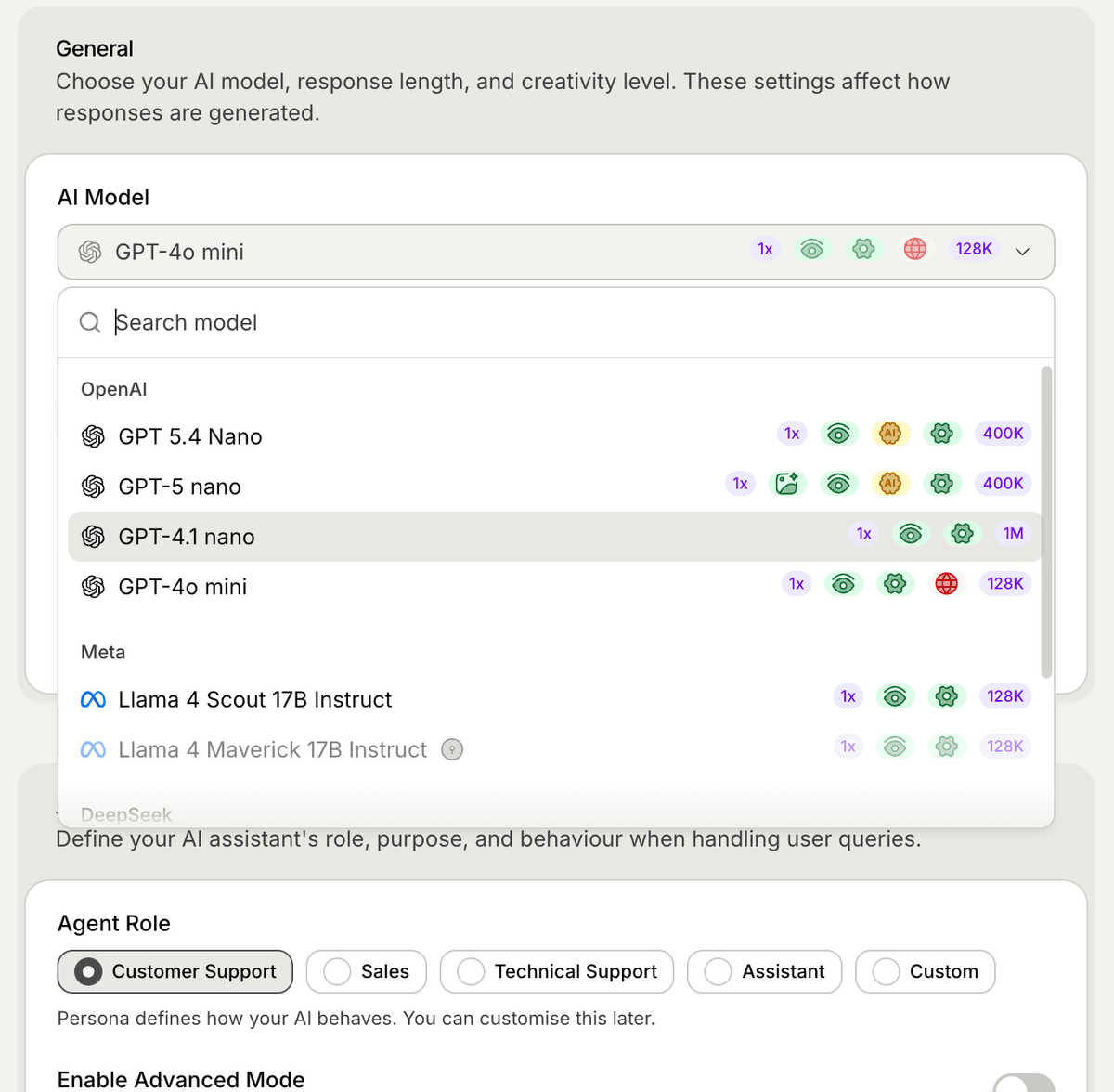
Open the AI settings
To configure AI settings:
Open your AI Agent workspace
Go to Settings
Open AI Model
Inside this section, you can manage the core AI behavior settings.
Configure Max Tokens
The Max Tokens setting controls how long AI responses can be.
Higher values usually allow:
longer answers
more detailed explanations
larger context handling
Lower values usually:
create shorter responses
improve response speed
reduce usage
Most support workflows work best with balanced response lengths.
Configure Creativity
The Creativity slider controls how predictable or creative the AI responses are.
Lower creativity:
more grounded responses
more consistent answers
safer support behavior
Higher creativity:
more conversational responses
more variation in wording
more flexible answers
For customer support workflows, lower creativity is usually recommended.
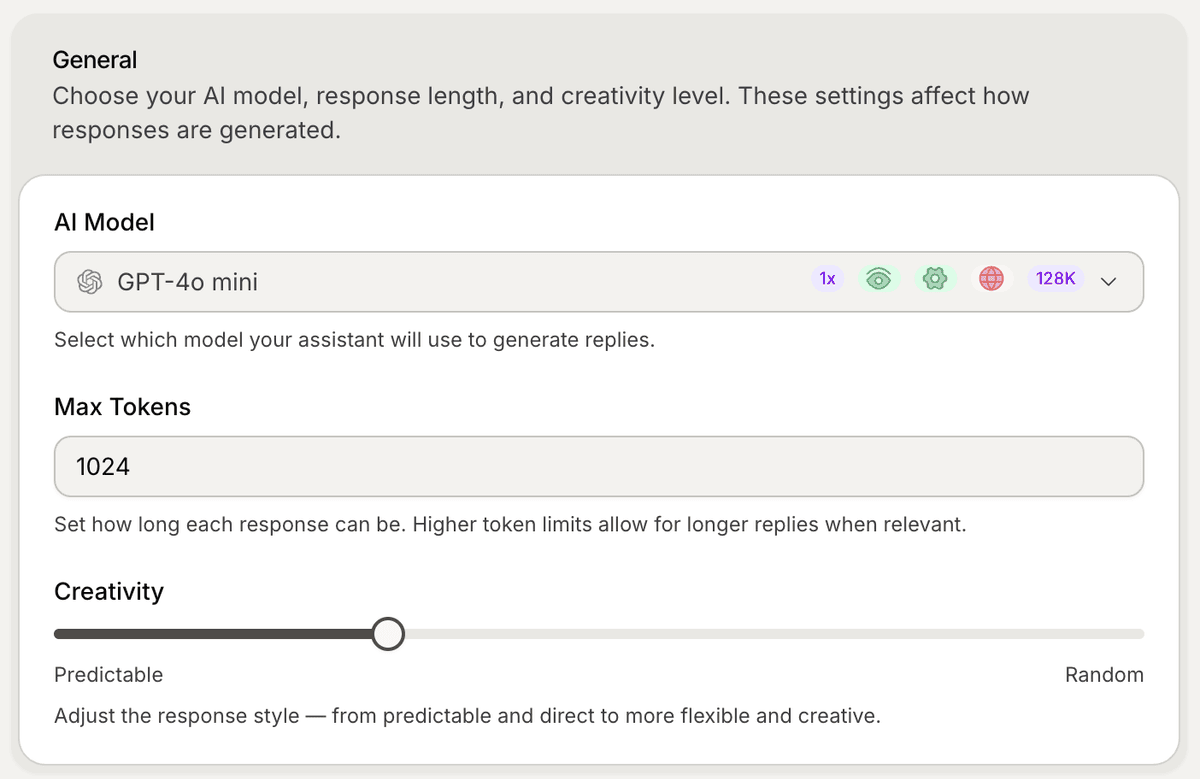
Choose the right balance
Different businesses may require different AI behavior.
For example:
ecommerce stores may prefer concise and fast answers
onboarding assistants may require more detailed explanations
sales assistants may use slightly more conversational responses
Testing different settings helps optimize the customer experience.
Use AI settings with your content
AI settings work together with:
synced websites
uploaded files
snippets
internal articles
custom instructions
The AI combines:
your knowledge sources
your instructions
your AI settings
to generate responses.
Test your AI behavior
After updating your settings:
Open the Playground
Start test conversations
Review response quality
Adjust settings if needed
Testing helps identify the best balance between:
response quality
speed
consistency
Improve settings over time
Most teams refine AI settings gradually based on:
customer conversations
support workflows
AI quality reviews
business requirements
Small adjustments can noticeably improve AI performance.
Best practices for AI settings
For most support workflows:
keep creativity relatively low
avoid extremely long responses
prioritize clarity and consistency
test common customer questions regularly
Reliable support experiences usually perform better than overly creative conversations.
PRO TIP:
Start with conservative AI settings first. After testing real customer conversations, you can gradually optimize for creativity or longer responses if needed.