Users Capture helps businesses collect customer details such as:
names
email addresses
phone numbers
This information can be used for:
support follow-ups
lead generation
human handoff
customer management
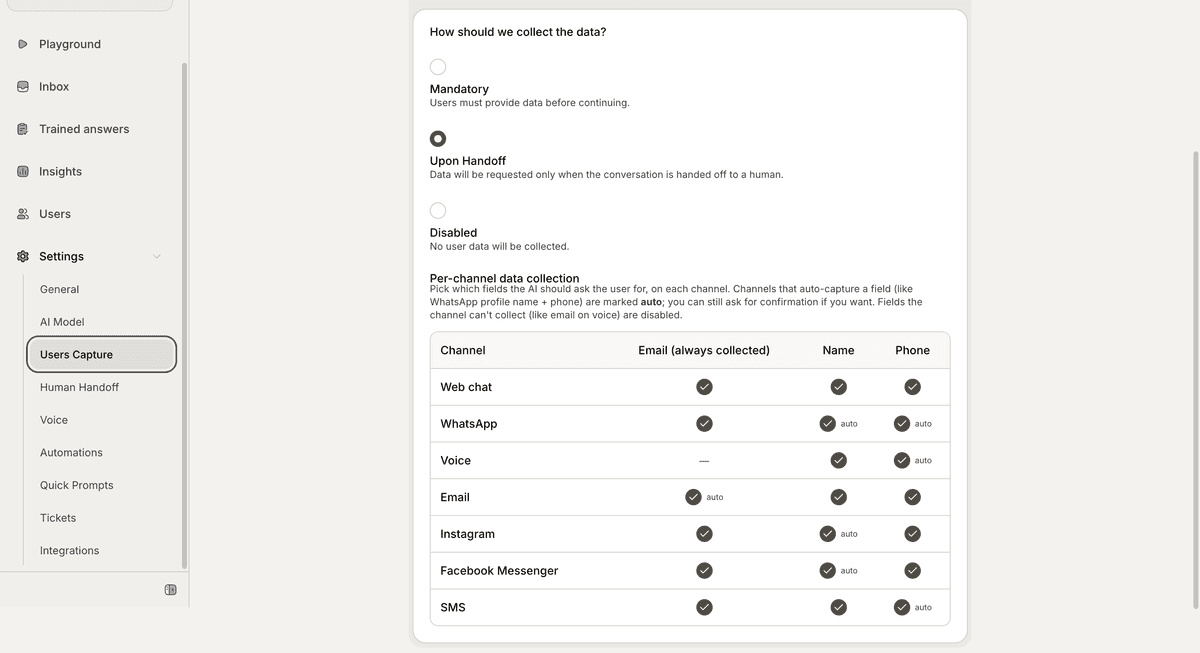
Open the Users Capture settings
To configure Users Capture:
Open your AI Agent workspace
Go to Settings
Open Users Capture
Inside this section, you can configure how and when customer information is collected.
Choose a capture mode
Mando AI supports different capture modes depending on your workflow.
Available options may include:
Disabled
Upon Human Handoff
Mandatory
Each mode changes when customer details are requested during conversations.
Disabled mode
When Disabled is selected:
the AI does not request customer information automatically
conversations remain anonymous unless users provide details manually
This works well for simple support experiences or public AI interactions.
Upon Human Handoff mode
When Upon Human Handoff is selected:
customer information is requested only before escalating to a human agent
This helps support teams collect contact details only when necessary.
This workflow is commonly used for:
support escalations
ticket creation
follow-up conversations

Mandatory mode
When Mandatory is selected:
users must provide their information before continuing the conversation
This is commonly used for:
lead generation
sales workflows
account-based support
business inquiries
Configure capture fields
Depending on your workflow, you may choose to collect:
name
email address
phone number
Only collect information that is necessary for your support or business process.
Use captured users inside the workspace
Captured user information can later be used inside:
Inbox
Tickets
AI conversations
support workflows
This helps teams manage customer interactions more effectively.
Balance friction and engagement
Different capture modes create different user experiences.
For example:
mandatory capture increases lead collection
optional capture reduces friction
handoff capture balances both workflows
Choose the setup that best matches your business goals.
Test the capture workflow
After configuring Users Capture:
Start a test conversation
Trigger the capture flow
Verify the requested fields
Confirm the user experience feels natural
Testing helps avoid unnecessary friction during real customer conversations.
PRO TIP:
Request customer information only when necessary. Lower friction usually improves conversation engagement and completion rates.