MCP (Model Context Protocol) integrations allow your AI Agent to connect to external tools and data sources.
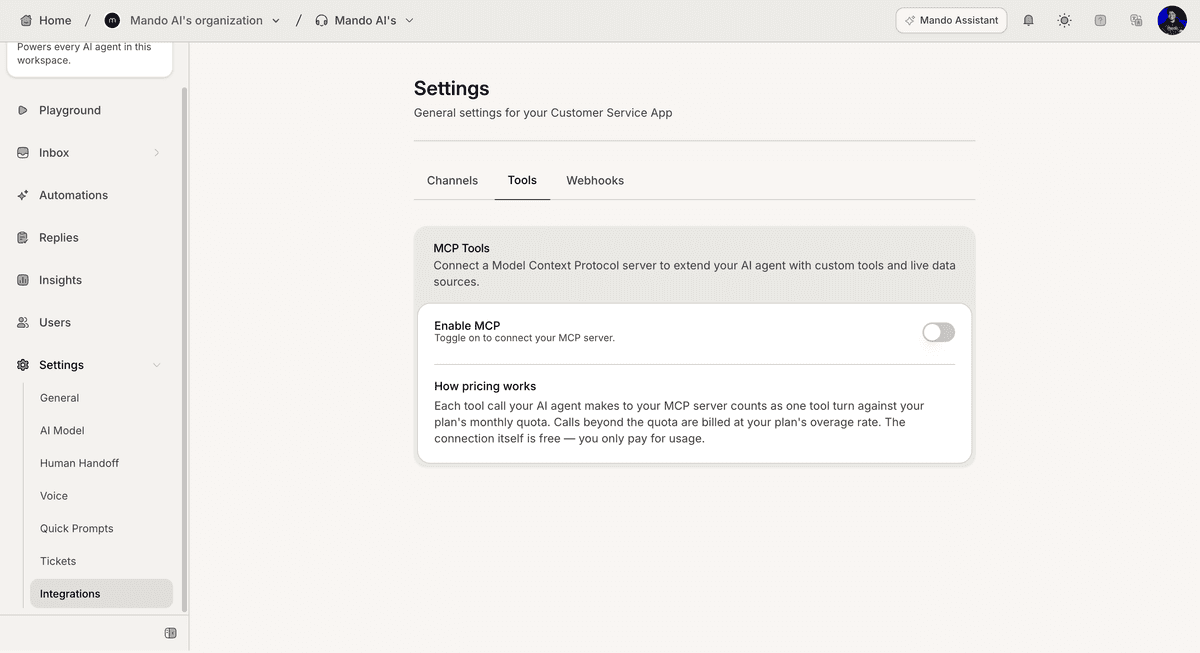
Open MCP settings
To access MCP settings:
Open your AI Agent
Go to Settings
Open Tools
The MCP Tools section appears inside the Tools settings page.
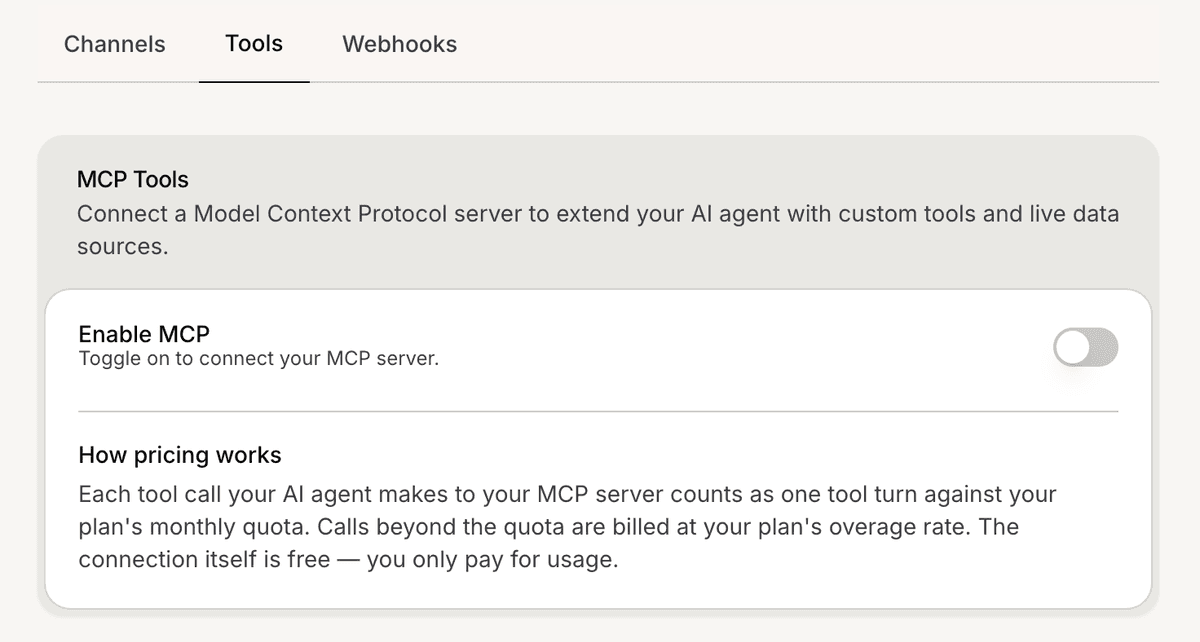
Enable MCP
To enable MCP integrations:
Locate MCP Tools
Turn on Enable MCP
Once enabled, MCP functionality becomes available for your AI Agent.
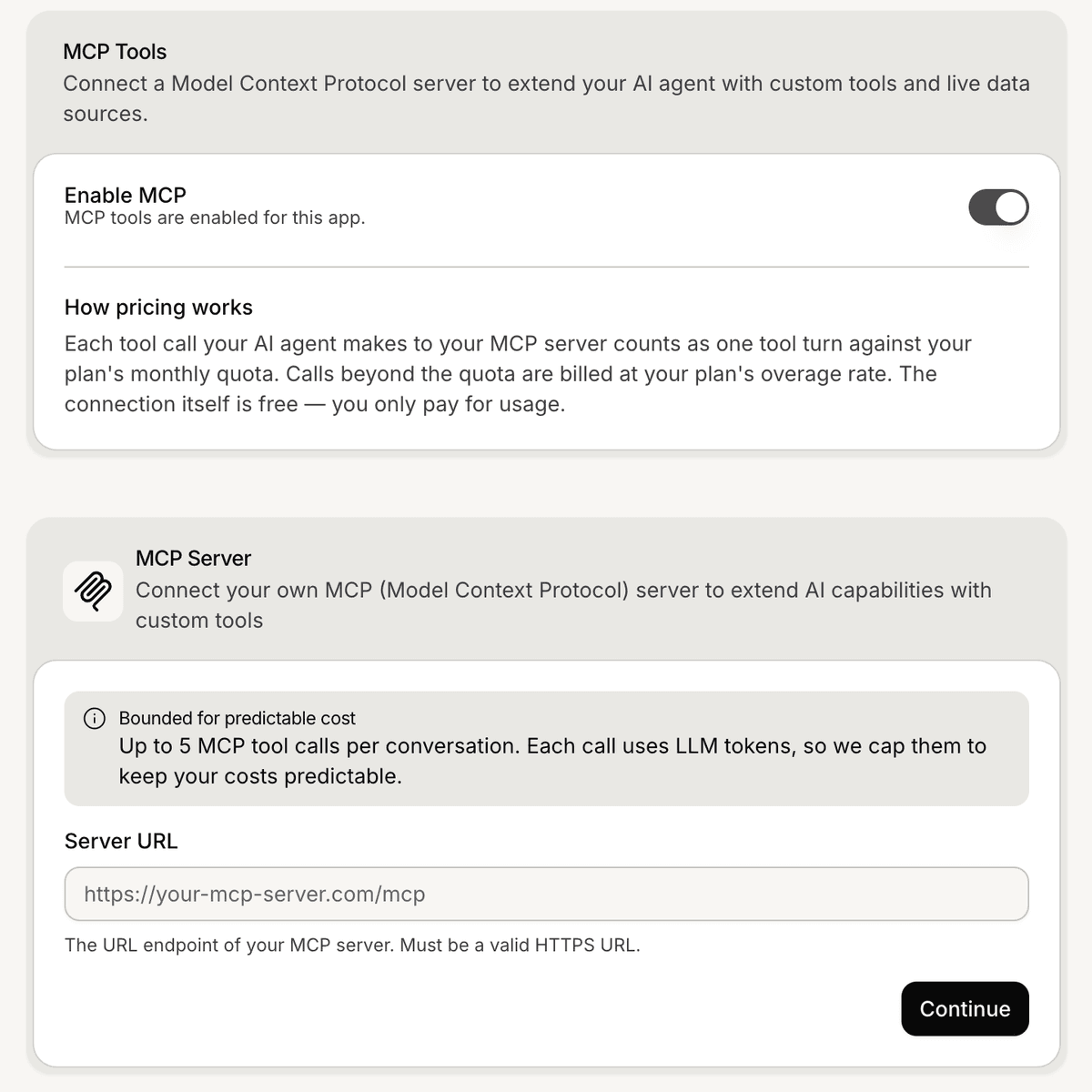
Connect an MCP server
After enabling MCP, you can connect your own MCP server.
To configure the server:
Locate MCP Server
Enter your Server URL
Click Continue
The server URL must be a valid HTTPS URL.
Review MCP usage information
The MCP section displays usage details.
Available information includes:
each MCP tool call counts against your monthly quota
calls beyond the quota use your plan's overage rate
the MCP connection itself is free
up to 5 MCP tool calls per conversation
PRO TIP:
Verify your MCP server URL before continuing. Invalid URLs can prevent MCP tools from connecting.