Newsrooms provide a public content hub with:
article publishing
collections
tags
public article pages
customizable branding
Create a Newsroom
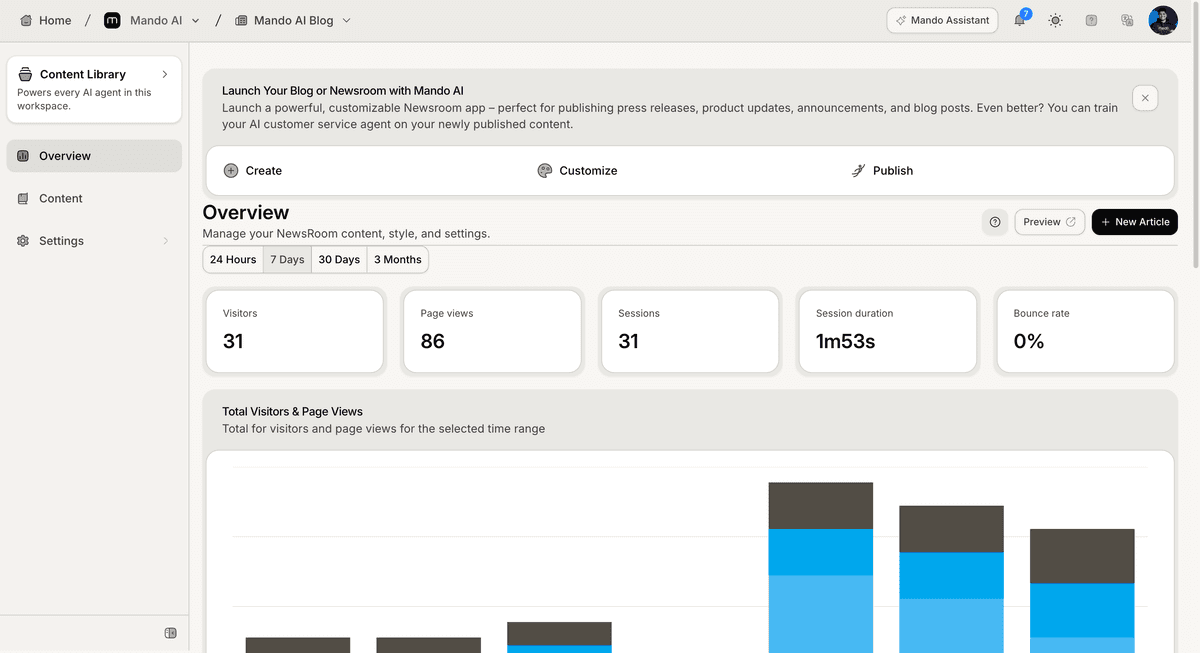
To create a Newsroom:
Open Public Pages
Create or open a Newsroom
Wait for the Newsroom dashboard to load
After setup, Mando AI generates a public URL for the Newsroom.
Create your first article
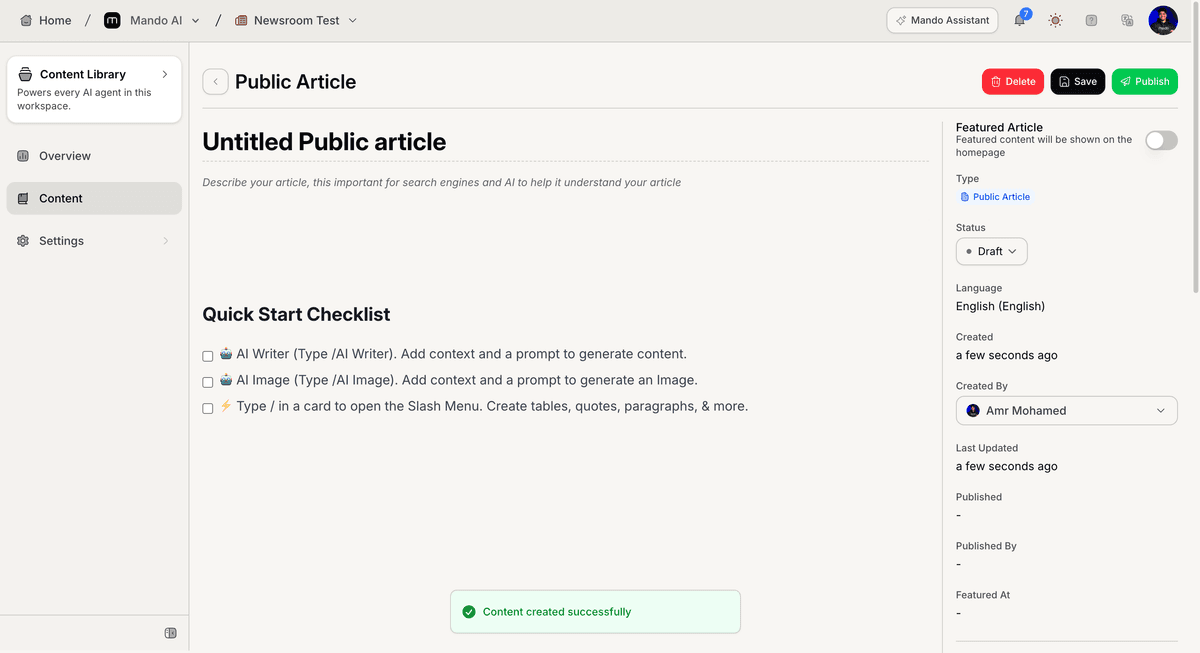
Newsrooms include a built-in article editor.
To create an article:
Open Content
Click New Article
Enter the article title
Add a short description
Write the article content
Click Save
New articles are created as drafts by default.
Organize Newsroom content
Newsrooms support collections and tags for organizing content.
To organize content:
Open Content
Create collections if needed
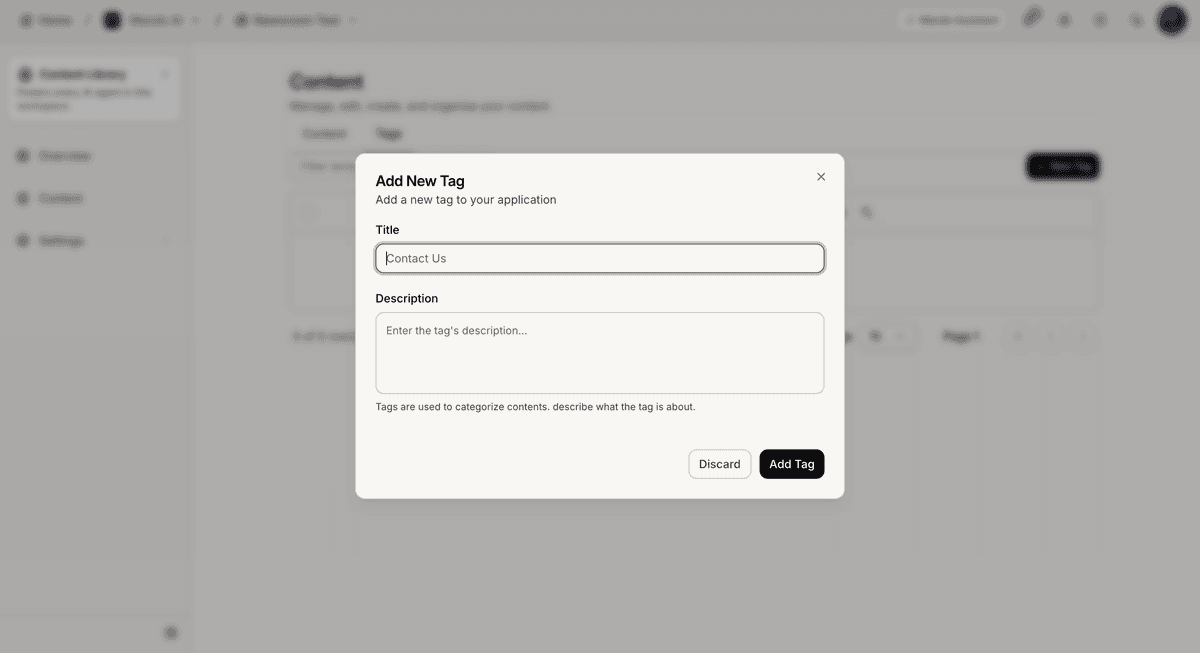
Open Tags
Create or assign tags to articles
These tools help organize public content more efficiently.
Publish an article
To publish an article:
Open the article
Click Publish
Confirm the publish action
Published articles become publicly accessible from the Newsroom URL.
Preview the Newsroom
The Newsroom settings include a public preview link.
To preview the Newsroom:
Open Settings
Go to General
Click Preview
This helps verify the public Newsroom experience before sharing it.
PRO TIP:
Use collections for broad categories and tags for smaller content topics or themes.