AI Page customization settings let you control:
colors
fonts
logos
page text
navigation links
footer content
These settings help match the AI Page to your brand and public experience.
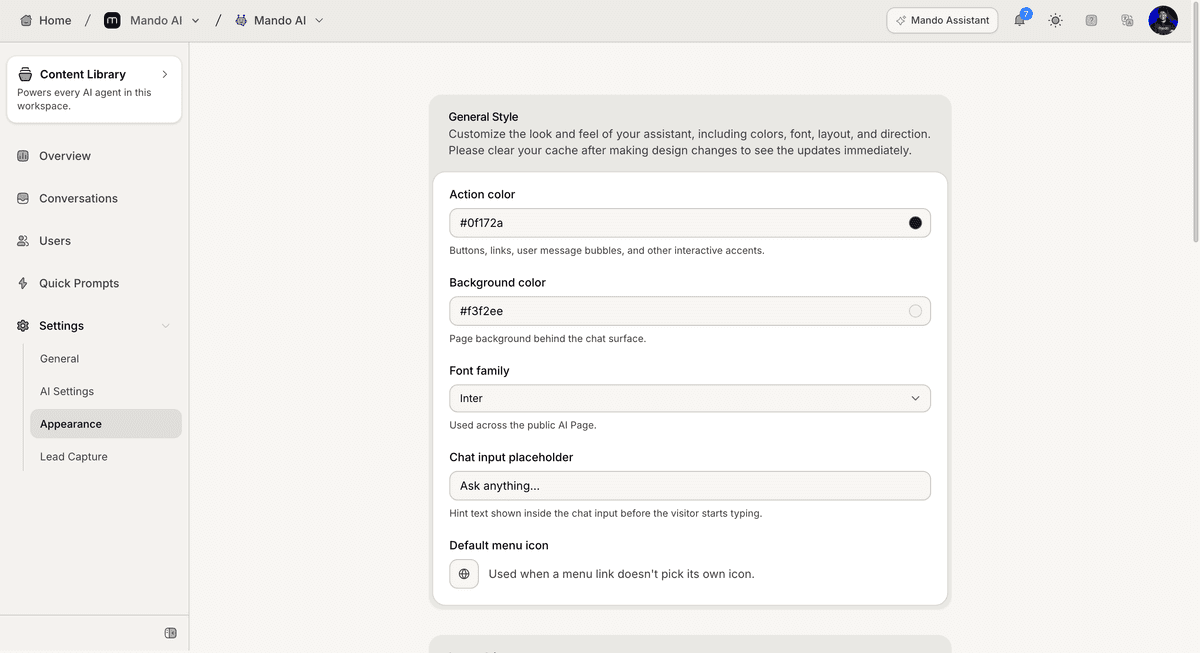
Open the AI Page appearance settings
To customize the AI Page:
Open your AI Page
Go to Settings
Open Appearance
Inside this section, you can manage the visual appearance of the page.
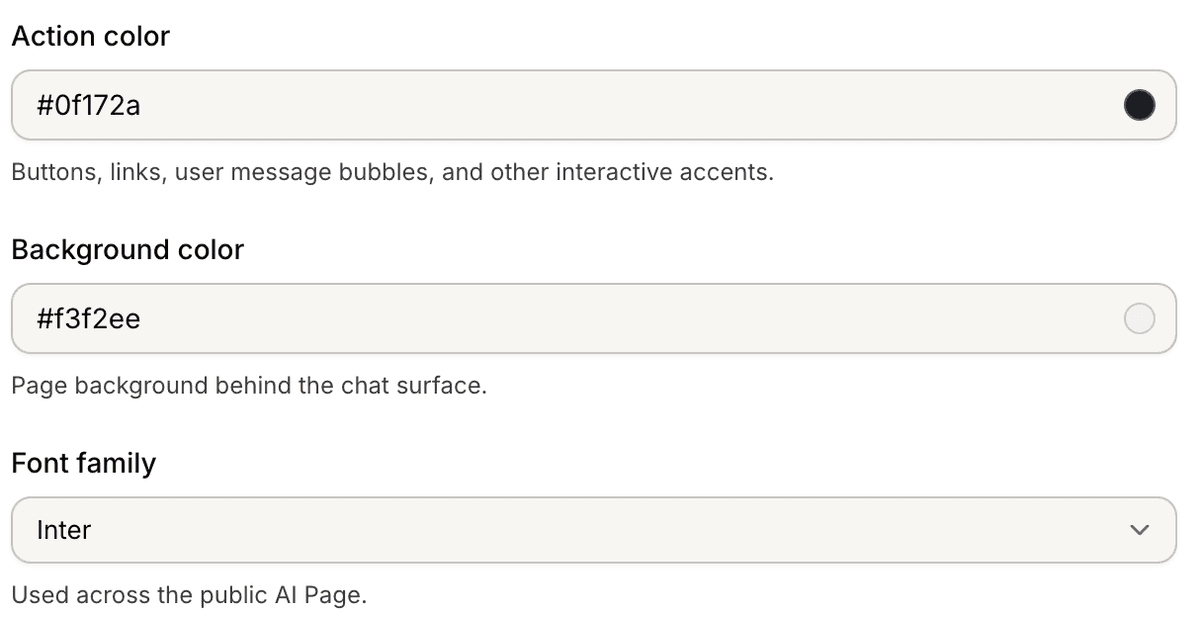
Customize the page colors
The Appearance settings include color controls for the public AI Page.
Available options include:
action color
background color
These colors affect the visible styling of the page interface.
Change the font family
AI Pages support customizable fonts.
To update the font:
Open Font Family
Select a font from the dropdown
Save your changes
The selected font is applied across the AI Page interface.
Upload logos and icons
The Appearance settings also include branding assets.
You can upload:
page logo
chat icon
These assets appear across the public AI Page experience.

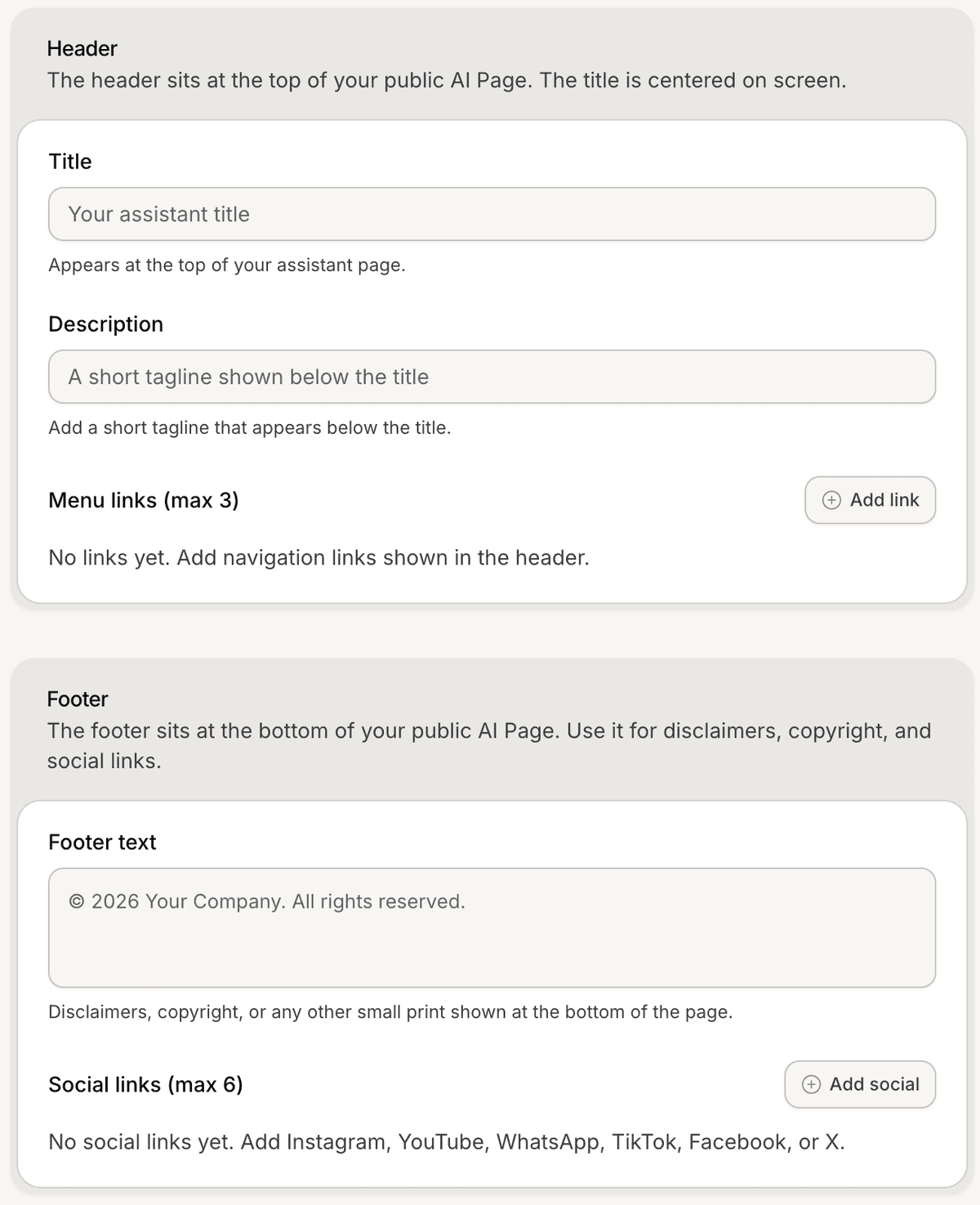
Customize the header content
The Header section controls the top section of the AI Page.
You can configure:
title
description
menu links
AI Pages support up to 3 menu links.
Customize the footer content
The Footer section controls the bottom section of the AI Page.
Available settings include:
footer text
social media links
Supported social platforms include:
Instagram
YouTube
WhatsApp
TikTok
Facebook
X
PRO TIP:
Keep navigation links and footer content minimal to avoid distracting visitors from the AI experience.