Learn how to customize the appearance and layout of your Help Center in Mando AI.
Help Center customization settings let you control:
colors
fonts
logos
homepage text
navigation links
footer content
These settings help create a branded public support experience.
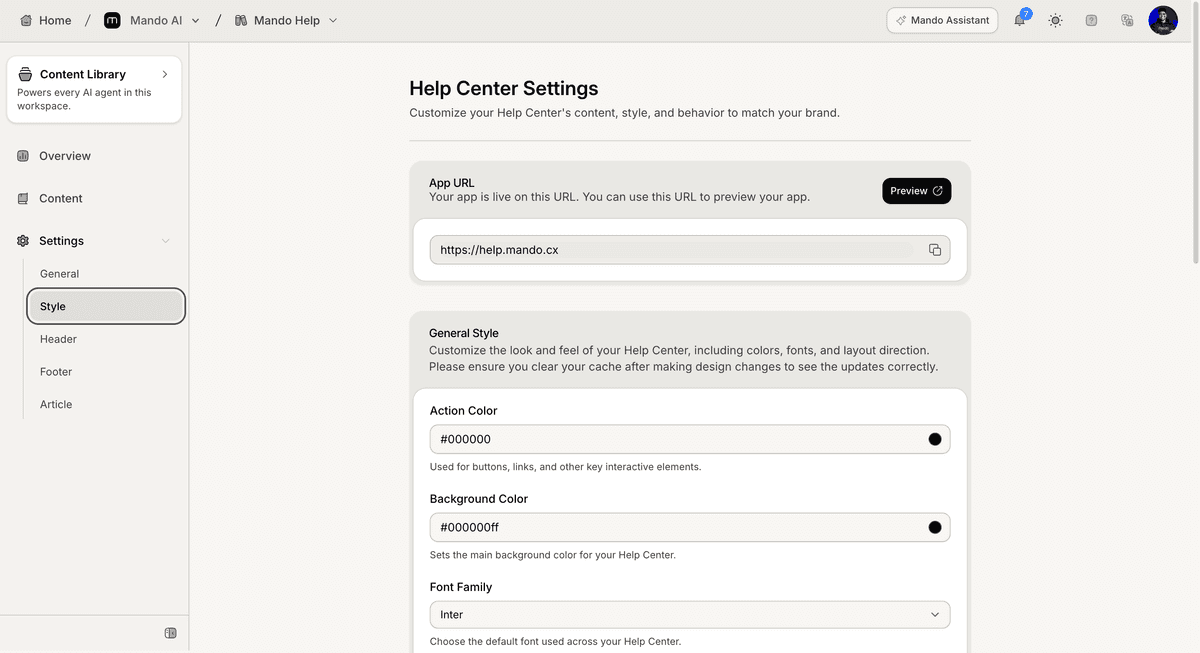
Open the Help Center settings
To customize the Help Center:
Open your Help Center app
Go to Settings
Open Style
The Style section includes the visual customization settings for the public Help Center.
Customize colors and fonts
The Style settings include appearance controls for the Help Center.
Available settings include:
action color
background color
font family
These settings affect the public Help Center interface.
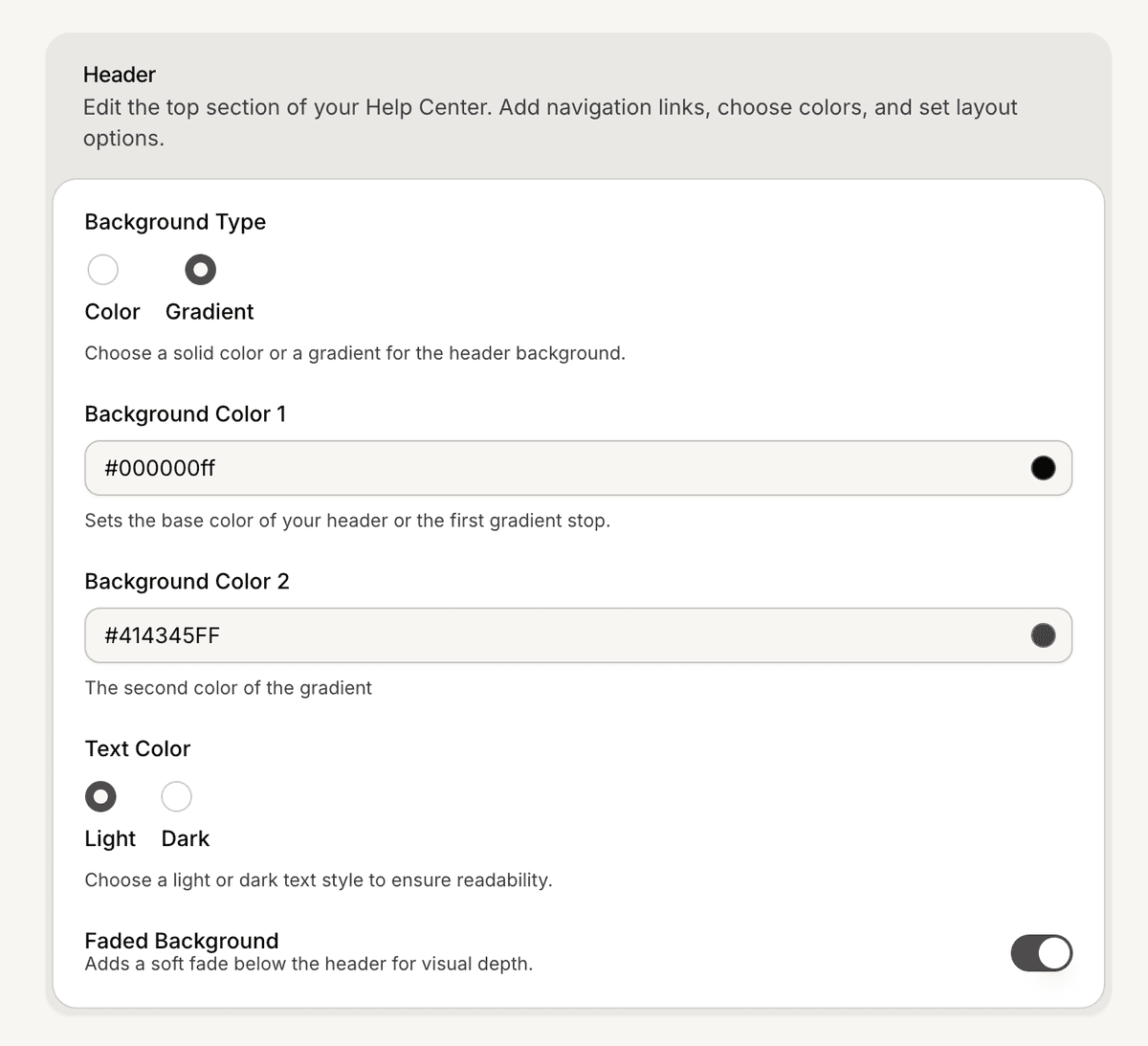
Configure the header appearance
The Style settings also include header customization controls.
Available options include:
header background color
header text color
gradient settings
faded background options
These settings affect the top section of the Help Center homepage.
Configure the footer appearance
The footer settings control the bottom section of the Help Center.
Available settings include:
footer background color
footer text color
These settings affect how the footer appears on public pages.
Preview the Help Center
After updating the appearance settings:
Open Settings
Click Preview
Review the public Help Center
This helps verify how the changes appear to visitors.
PRO TIP:
Keep colors and fonts consistent with your website or product branding for a more unified support experience.