Branding settings let you customize how the AI Page appears to visitors.
You can configure:
logos
chat icons
colors
fonts
page text
Mando AI branding visibility
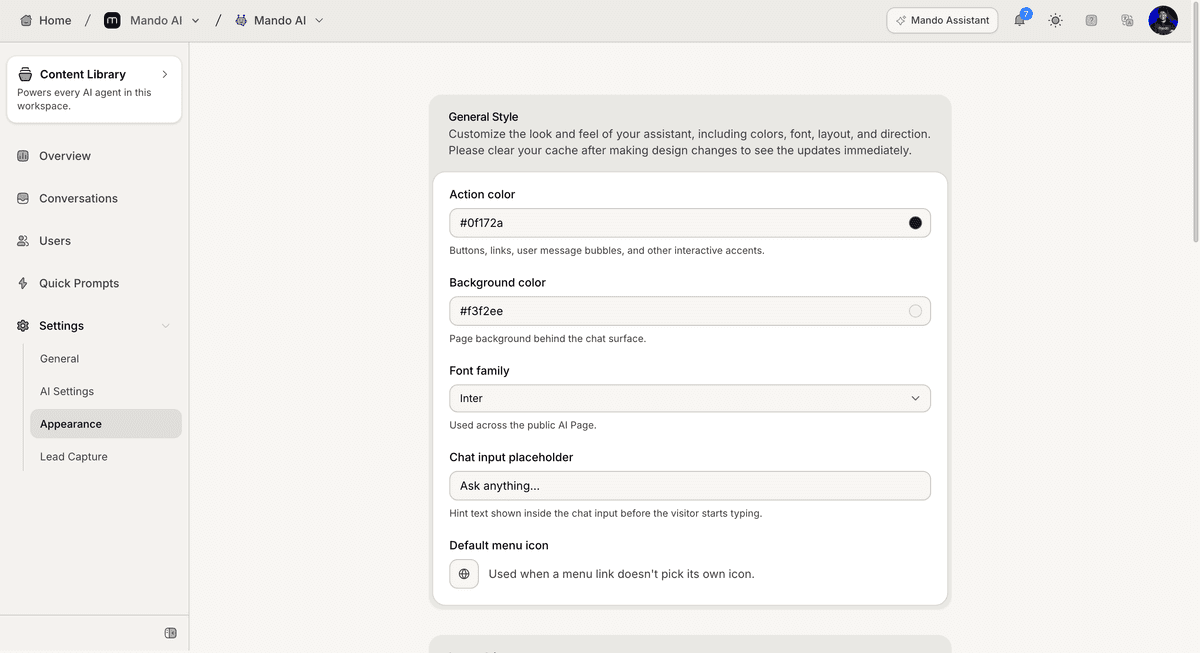
Open the branding settings
To configure branding:
Open your AI Page
Go to Settings
Open Appearance
The available branding settings are displayed inside these sections.
Upload a logo
AI Pages support custom logo uploads.
To upload a logo:
Open the logo upload section
Upload your image
Save your changes
The uploaded logo appears on the public AI Page.

Upload a chat icon
You can also customize the AI chat icon.
To update the chat icon:
Open the chat icon upload section
Upload an image
Save the changes
The chat icon is displayed inside the AI conversation interface.
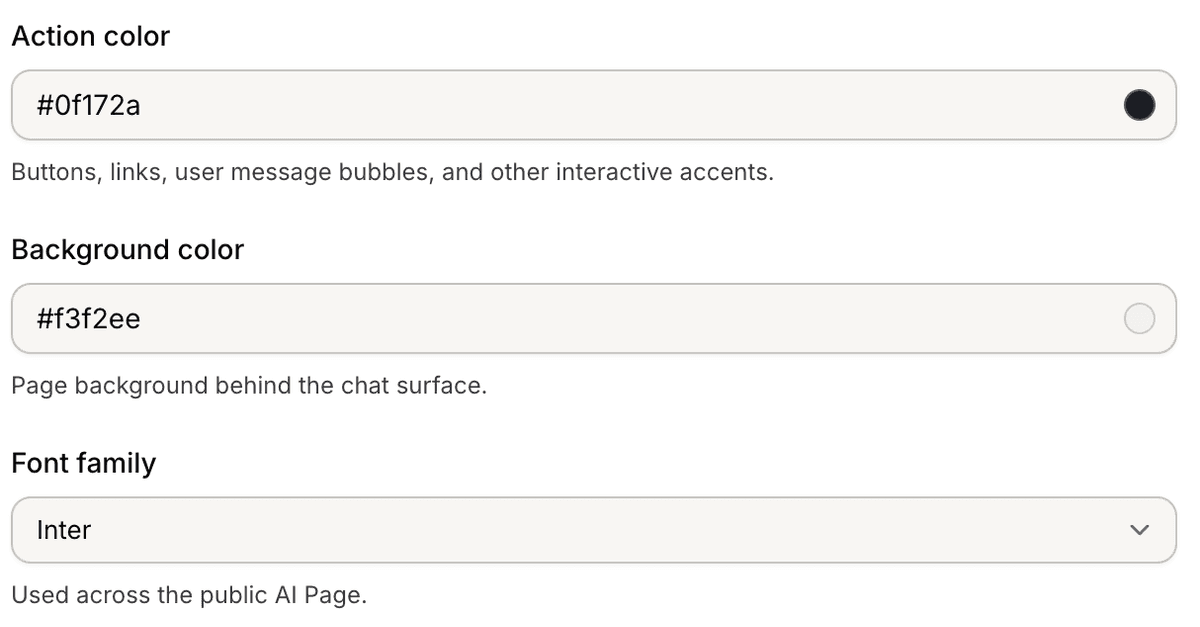
Configure page colors and fonts
The branding settings also include appearance controls.
Available options include:
action color
background color
font family
These settings affect the visual appearance of the public AI Page.
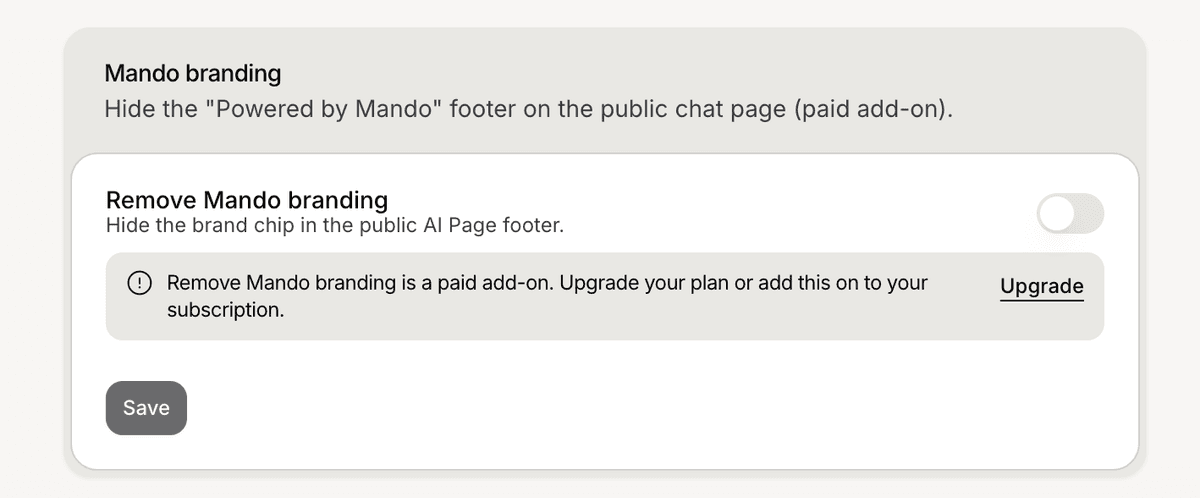
Configure branding visibility
The General settings include a branding option for Mando AI attribution.
To manage this setting:
Open Settings
Go to General
Locate the branding section
Some branding controls may require a paid add-on.
Preview the AI Page
After updating the branding:
Open Settings
Click Preview
Review the public AI Page
This helps verify how the branding appears to visitors.
PRO TIP:
Use consistent colors, fonts, and logos across all public pages to create a more unified customer experience.