Learn how to configure target fields inside AI Actions and collect structured customer information during automated workflows.
Target fields define the information your AI Action should collect from users during conversations.
These fields are useful for:
lead collection
support workflows
booking requests
customer onboarding
webhook submissions
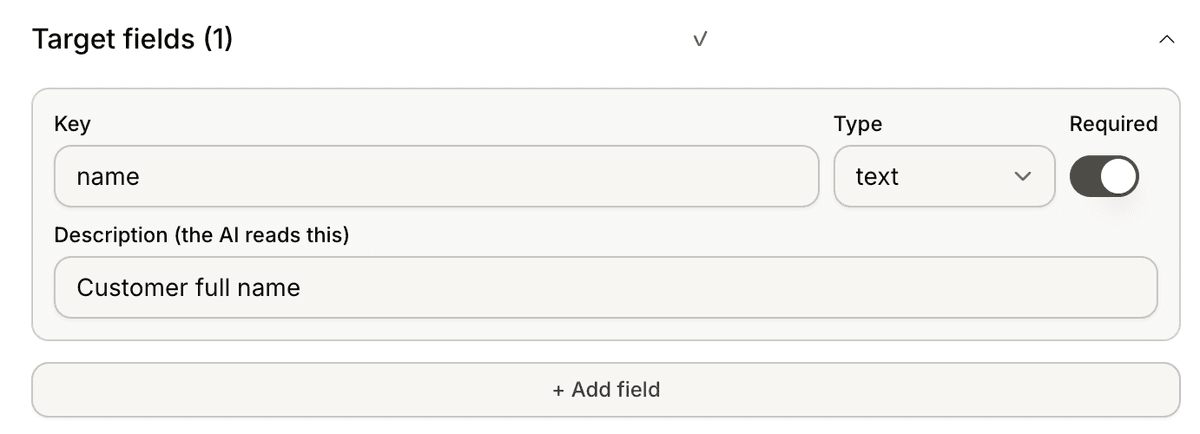
Open the Target Fields section
To configure target fields:
Open your AI Agent workspace
Go to Automations
Open AI Actions
Create or edit an AI Action
Open the Target Fields section
Inside this section, you can configure the fields used during the automation flow.
Add a target field
To create a field:
Click Add Field
Enter the field details
Configure the field behavior
Save the field
Each field represents a value the AI should collect from the customer.
Configure field details
Each target field includes configurable settings such as:
field name
field description
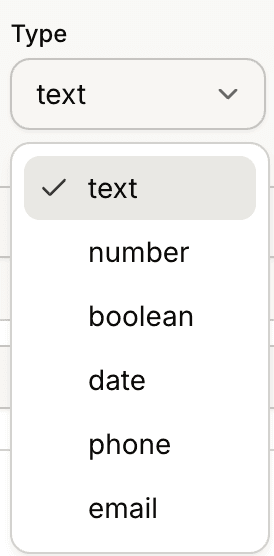
field type
validation behavior
These settings help the AI understand what information should be collected.
Use validation settings
Target fields support validation options visible inside the builder.
Available validation examples shown in the interface include:
Email
Phone Number
Number
Validation helps ensure customer inputs follow the expected format.
Configure required fields
Fields can also be marked as required.
Required fields help ensure important information is collected before the workflow continues.
This is useful for:
lead qualification
support escalation
booking workflows
Use field descriptions carefully
Field descriptions help guide AI behavior during information collection.
Clear descriptions usually improve:
response quality
collection accuracy
workflow consistency
Short and direct descriptions usually work best.
Use target fields with AI Actions
Target fields work together with:
AI Actions
Guided Flows
webhooks
conversation automations
Collected information can later be passed into workflows or external systems.
Test your field collection flow
Before enabling the workflow publicly:
Start a test conversation
Submit sample customer inputs
Verify validation behavior
Confirm fields are collected correctly
Testing helps prevent collection and formatting issues.
Best practices for target fields
For better automation workflows:
collect only necessary information
use clear field names
validate important fields
avoid overly long forms
Shorter collection flows usually create better customer completion rates.
PRO TIP:
Use validation rules only for fields that truly require formatting checks. Too many validation steps can make conversations feel restrictive.