AI Actions allow your AI Agent to:
collect information
process inputs
trigger workflows
send data to external systems
guide customers through automated experiences
AI Actions are useful for:
lead collection
booking workflows
support routing
form automation
structured customer interactions
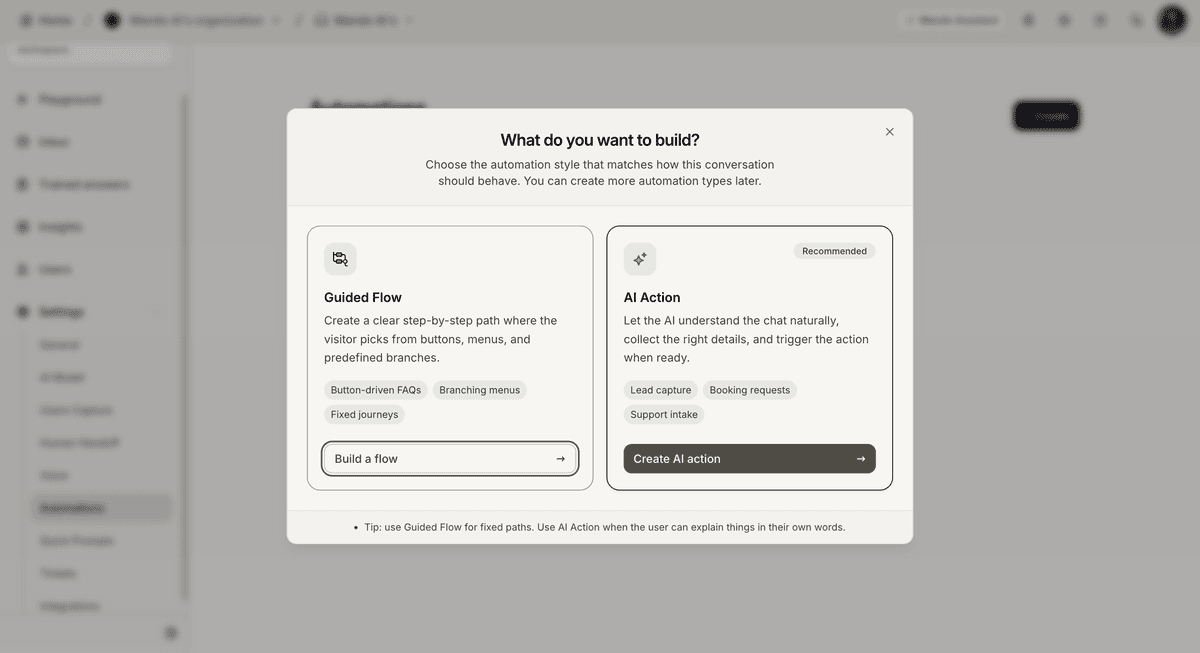
Open the AI Actions section
To create an AI Action:
Open your AI Agent workspace
Go to Automations
Open the AI Actions tab
Click Create AI Action
This opens the AI Action builder.
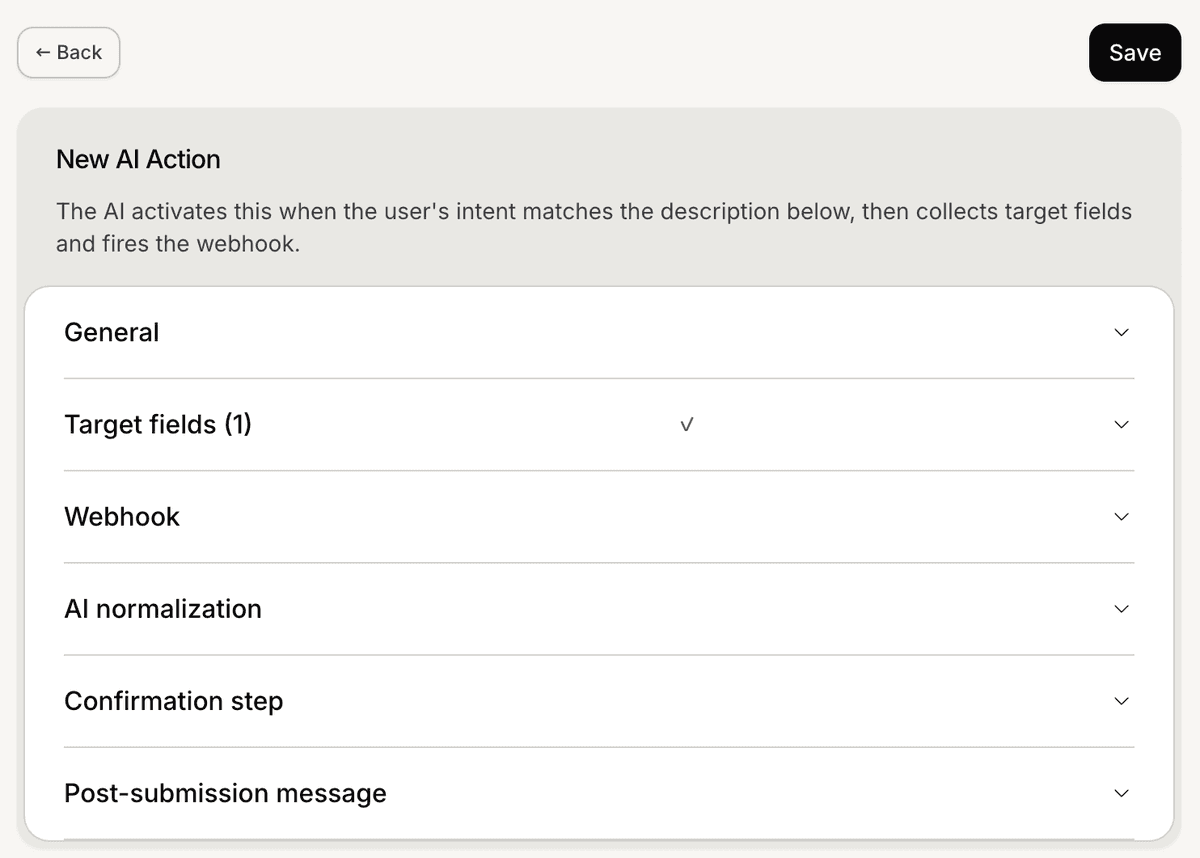
Configure the AI Action
Inside the configuration panel, you can configure:
action name
action description
target fields
AI behavior
connected workflow settings
These settings define how the AI Action behaves during conversations.
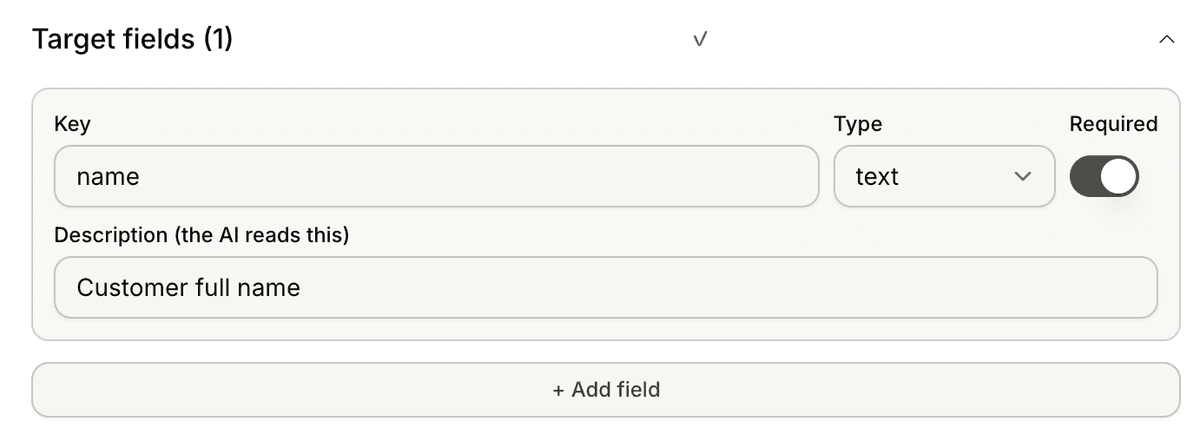
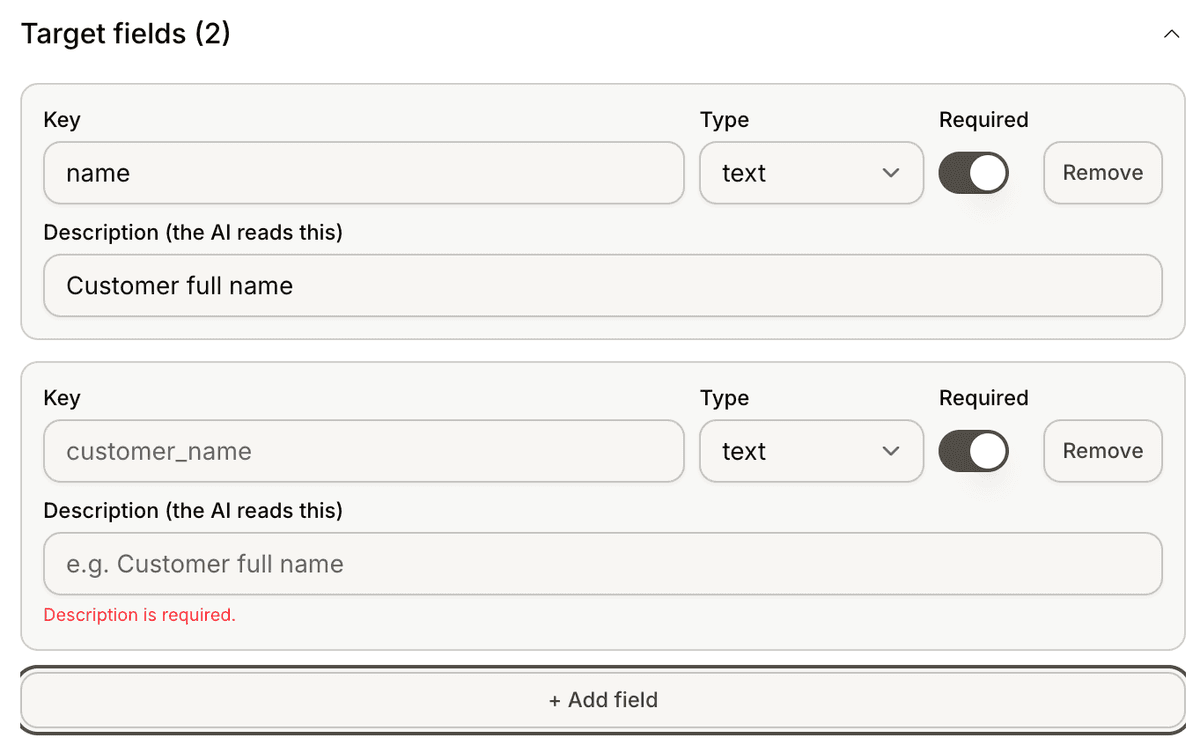
Add target fields
Target fields define what information the AI should collect from customers.
Examples may include:
name
email
phone number
company
custom inputs
Each field can include its own validation and behavior settings.
Configure AI behavior
Inside the AI Action settings, you can configure how the AI handles:
customer responses
missing information
normalization behavior
collection flow
This helps create more structured and predictable workflows.
Use validation settings
Some fields may support validation options such as:
required fields
email validation
phone validation
number validation
Validation helps improve data quality during customer interactions.
Connect AI Actions to workflows
AI Actions can work together with:
Guided Flows
webhooks
Human Handover
support workflows
This allows businesses to build more advanced automations.
Test the AI Action
Before enabling the action publicly:
Run a test interaction
Submit sample customer inputs
Verify field collection behavior
Review validation handling
Testing helps prevent workflow issues during live conversations.
Update AI Actions later
AI Actions can be edited and improved over time.
Many teams gradually:
add new fields
improve prompts
refine validation rules
optimize workflows
Simple collection flows usually create better customer experiences.
Best practices for AI Actions
For better automation workflows:
collect only necessary information
keep prompts short
validate important fields
test every workflow path
Shorter workflows are usually easier for customers to complete.
PRO TIP:
Start with a small number of required fields first. Long collection flows usually reduce customer completion rates.