Collect Input nodes allow workflows to request structured information such as:
names
email addresses
phone numbers
custom responses
These nodes are useful for:
lead collection
support forms
onboarding flows
booking requests
customer verification
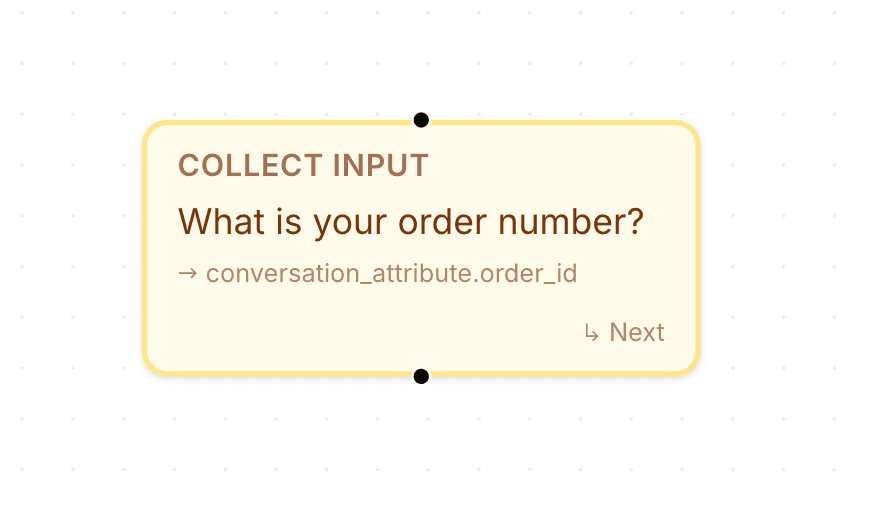
Open the flow builder
To use a Collect Input node:
Open your AI Agent workspace
Go to Automations
Open the Flows tab
Create or edit a flow
Inside the flow builder, you can add input collection steps to the conversation.
Add a Collect Input node
To collect customer information:
Click + Add Node
Select Collect Input
Connect the node to your flow
This creates a customer input step inside the workflow.

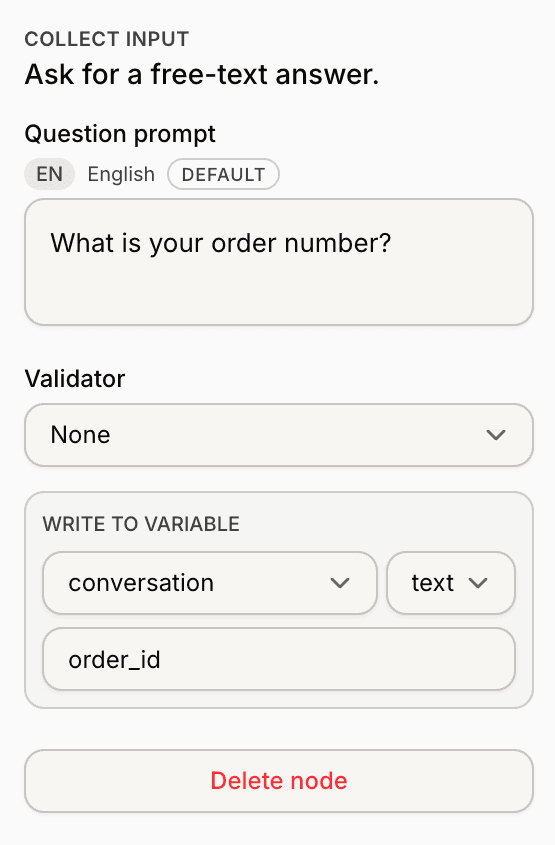
Configure the input field
Inside the node settings, you can configure:
field label
field description
validation type
required status
These settings define what information the customer should provide.
Use validation types
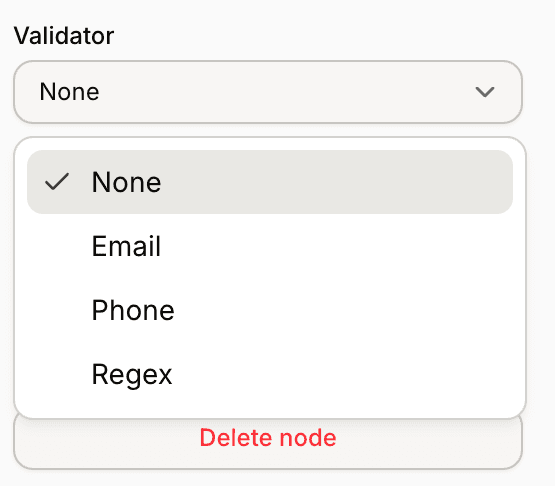
The Collect Input node includes visible validation options such as:
Email
Phone Number
Number
Validation helps ensure customers submit information in the expected format.
Configure required fields
Fields can also be marked as required before the workflow continues.
Required fields are useful for:
lead qualification
support escalation
booking workflows
Only require information that is necessary for the workflow.
Use Collect Input with other nodes
Collect Input nodes work well together with:
Send Message
Options
Branch
Send to Webhook
AI Actions
This allows workflows to collect and process customer information step-by-step.
Test your collection flow
Before enabling the automation publicly:
Start a test conversation
Submit sample inputs
Verify validation behavior
Confirm the workflow continues correctly
Testing helps prevent broken or confusing flows.
Keep collection flows simple
For better completion rates:
ask short questions
collect only necessary information
avoid long forms
validate only important fields
Simpler workflows are usually easier for customers to complete.
PRO TIP:
Customers are more likely to complete flows when each step asks for one clear piece of information at a time.